

To batch rename files on Windows quickly and accurately in 2026, the best overall solution for complex naming rules is dedicated offline software like Smart File Renamer, while simple sequential renaming can be handled natively using Windows File Explorer or PowerShell. Whether you are managing thousands of RAW photo files, organizing audio tracks, or standardizing document names across an enterprise directory, using a specialized batch file renamer prevents human error, saves hours of manual work, and ensures consistent file organization across your PC.
In this article
- Why You Need a Dedicated Batch File Renamer on Windows
- Native Windows Renaming Methods: Strengths and Limitations
- The Best Batch File Renamer Tools for Windows in 2026
- Featured Choice: Smart File Renamer Detailed Overview
- Windows File Renaming Methods Comparison
- How to Batch Rename Files on Windows Step by Step
- Final Verdict
- Frequently Asked Questions
Why You Need a Dedicated Batch File Renamer on Windows
File organization is one of the most persistent operational bottlenecks for digital professionals. Photographers returning from a shoot often face directories filled with thousands of generic camera names like DSC_0001.JPG. Software developers frequently deal with build artifacts or asset libraries that require strict prefixing or suffixing. Content creators, video editors, and administrative teams regularly spend valuable hours modifying file extensions, stripping special characters, or inserting creation dates into filename strings.
While Windows provides basic native utilities for modifying file names, manual renaming is notoriously error-prone and time-consuming. Renaming files individually invites costly mistakes, such as overwriting critical data or breaking program references. A dedicated batch file renamer solves these issues by allowing you to establish multi-rule transformations and apply them across thousands of files in seconds.
When selecting a file renamer for Windows in 2026, key requirements include:
- Multi-Rule Customization: The ability to combine operations such as replace text, change casing, insert prefixes/suffixes, and renumber sequentially in a single pass.
- Real-Time Live Preview: Instant visualization of how target filenames will look before committing changes to disk.
- Safe Undo Functionality: Complete roll-back protection in case an unintended naming rule is executed.
- Offline Processing and Data Security: Desktop processing that operates locally without uploading private company files or personal photos to external cloud servers.
- Metadata and Attribute Support: Utilizing EXIF data from photos or MP3 metadata tags for dynamic naming structures.

Batch-renames files on Windows with flexible, rule-based workflows, live preview, and safe undo.
Native Windows Renaming Methods: Strengths and Limitations
Windows includes several built-in mechanisms for modifying filenames. Understanding what these native tools can and cannot do helps clarify when a dedicated batch utility is necessary.
1. Windows File Explorer (F2 Key)
Windows File Explorer allows quick, basic batch renaming without installing additional software. By selecting multiple files, pressing F2 (or right-clicking and selecting the Rename icon), typing a base name like Project_Doc, and pressing Enter, Windows automatically renames the files as Project_Doc (1), Project_Doc (2), and so forth.
- Pros: Built directly into Windows 11 and 10; requires no installation; fast for basic numbering.
- Cons: Forces parenthetical numbering
(1)which is incompatible with many Web/database servers; cannot perform search-and-replace; cannot alter file extensions in bulk; no rule-stacking or EXIF metadata extraction.
2. Windows PowerShell Commands
For technical users and system administrators, Windows PowerShell offers powerful scripting capabilities using the Rename-Item and Get-ChildItem cmdlets. For instance, running a script can replace spaces with underscores or convert file extensions across a folder directory.
- Pros: Highly customizable; built into Windows; capable of regular expressions (Regex).
- Cons: Requires terminal CLI knowledge; easy to make script errors that corrupt file paths; lacks a visual user interface or live side-by-side preview before execution.
3. Command Prompt (CMD)
The classic Windows Command Prompt provides simple batch operations using the ren or rename command with wildcard characters (like *.jpeg *.jpg).
- Pros: Works on every legacy and modern Windows version.
- Cons: Extremely primitive wildcard behavior; easily truncates file names; no preview or multi-condition logic.
The Best Batch File Renamer Tools for Windows in 2026
When native Windows utilities fall short of your workflow demands, third-party and dedicated desktop tools bridge the gap. Here is a breakdown of the leading file renaming solutions for Windows PC users in 2026.
1. Smart File Renamer (Top Overall Windows Pick)
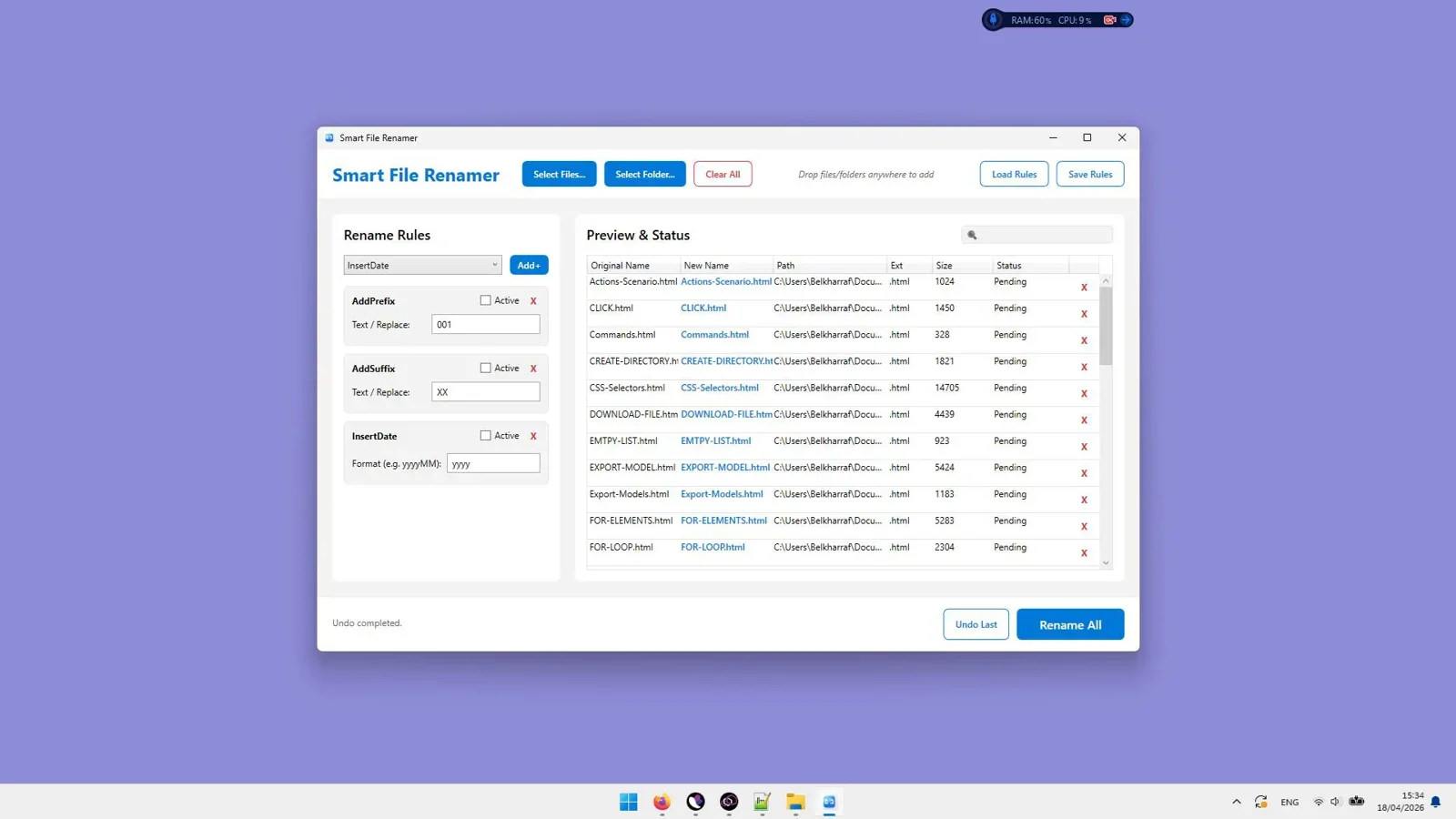
Smart File Renamer is a dedicated Windows desktop application engineered for fast, rule-based file transformations. Unlike web tools that force you to upload sensitive files, Smart File Renamer operates completely offline on your PC. It features an intuitive side-by-side interface where you load files or entire folders, stack multiple renaming rules, review live changes, and apply modifications with a single click.
2. PowerToys PowerRename
Microsoft PowerToys includes a module called PowerRename that integrates directly into the Windows File Explorer context menu. It provides regular expression search-and-replace functionality directly from the right-click menu.
- Best For: Simple right-click search and replace tasks for light users.
- Limitation: Lacks multi-step rule stacking, advanced renumbering sequences, and comprehensive metadata tagging.
3. Bulk Rename Utility
A classic Windows utility known for its feature-dense interface containing dozens of text boxes and radio buttons.
- Best For: Advanced users who prefer having every possible control option visible on one screen.
- Limitation: The interface is cluttered and overwhelming for modern workflows, creating a steep learning curve.
Featured Choice: Smart File Renamer Detailed Overview
For Windows users seeking the perfect balance between extreme power and user-friendly design, Smart File Renamer stands out as the definitive desktop utility in 2026. Designed to handle large photo libraries, document archives, and software development assets, it delivers professional file transformation without complex terminal scripting.
Key Features of Smart File Renamer
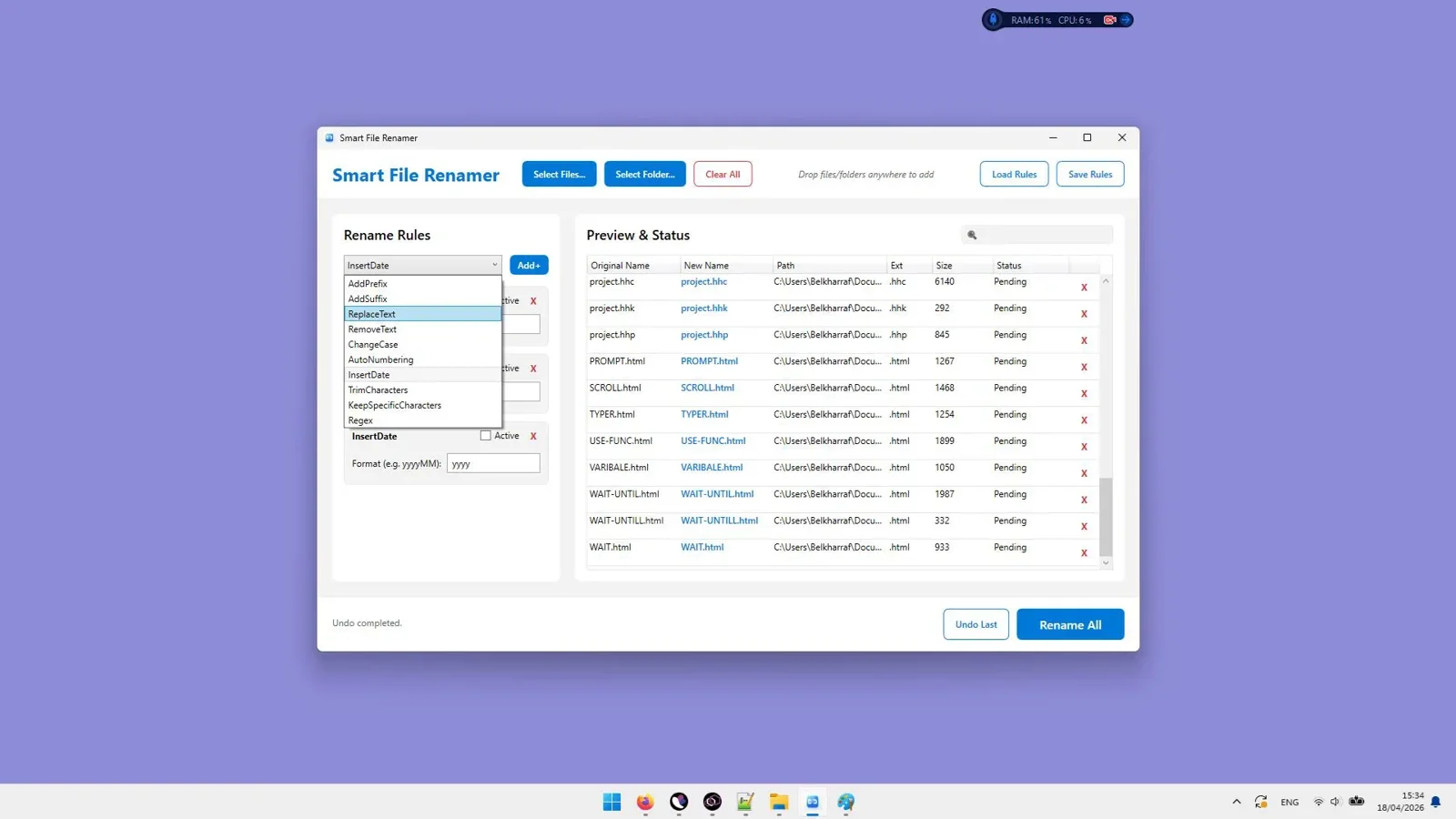
- Multi-Rule Stack Engine: Combine text replacement, case conversion (UPPERCASE, lowercase, Title Case), prefixing/suffixing, character stripping, and custom sequential numbering in a single execution pass.
- Live Real-Time Preview: See your original filename alongside the new target filename before making any changes on disk, eliminating guesswork.
- Safe Undo Functionality: Made a mistake in your naming scheme? Restore original file names instantly with the built-in undo log.
- 100% Offline and Private: Operates entirely on your local PC. No file data or metadata ever leaves your machine, making it compliant with strict privacy regulations.
- Bulk Extension Manager: Standardize or modify file extensions across thousands of files simultaneously (e.g., converting
.JPEGto.jpgor fixing missing extensions). - Lightweight Performance: Optimized for Windows 11 and 10 to process thousands of files in seconds without slowing down system resources.
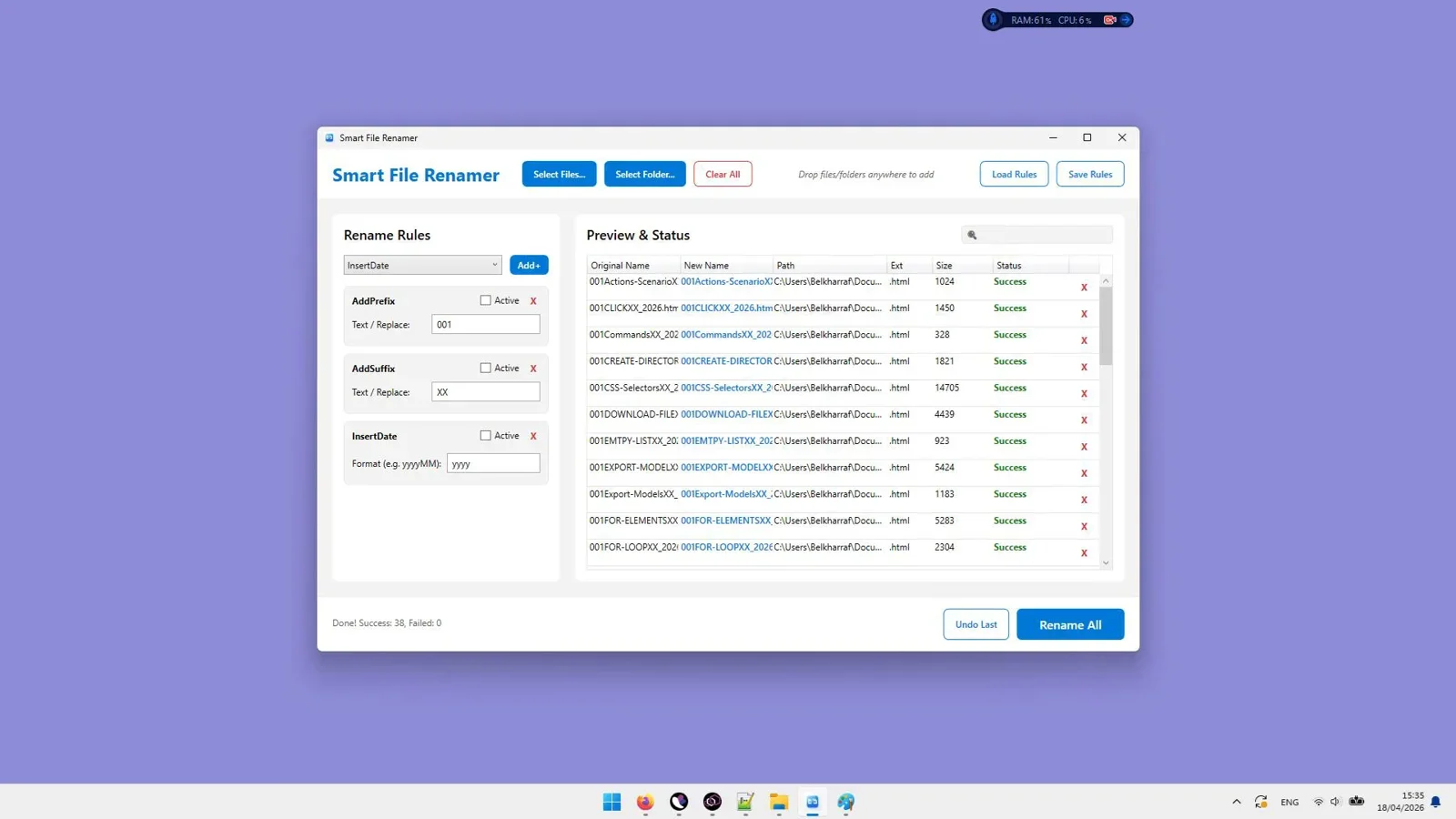

Organize photos, documents, and media libraries with instant rule previews and complete undo safety.
Windows File Renaming Methods Comparison
Here is a detailed comparison of common file renaming methods available on Windows PC in 2026:
| Feature / Method | Windows File Explorer (F2) | Windows PowerShell | PowerToys PowerRename | Smart File Renamer |
|---|---|---|---|---|
| Ease of Use | Very Easy | Difficult (CLI) | Moderate | Very Easy (GUI) |
| Live Preview | No | No (Unless scripted) | Yes | Yes (Real-time side-by-side) |
| Multi-Rule Stacking | No | Yes (Complex Code) | No | Yes (Visual Stacks) |
| Safe Undo | Limited (Ctrl+Z) | No | Limited | Full Undo Log |
| Batch Extension Renaming | No | Yes | Yes | Yes (Dedicated Rule) |
| Data Privacy & Offline Security | Local | Local | Local | 100% Local PC Processing |
How to Batch Rename Files on Windows Step by Step
To demonstrate how simple bulk file management becomes with the right tool, here is a step-by-step guide to renaming a folder of raw camera files using Smart File Renamer on Windows 11 / 10:
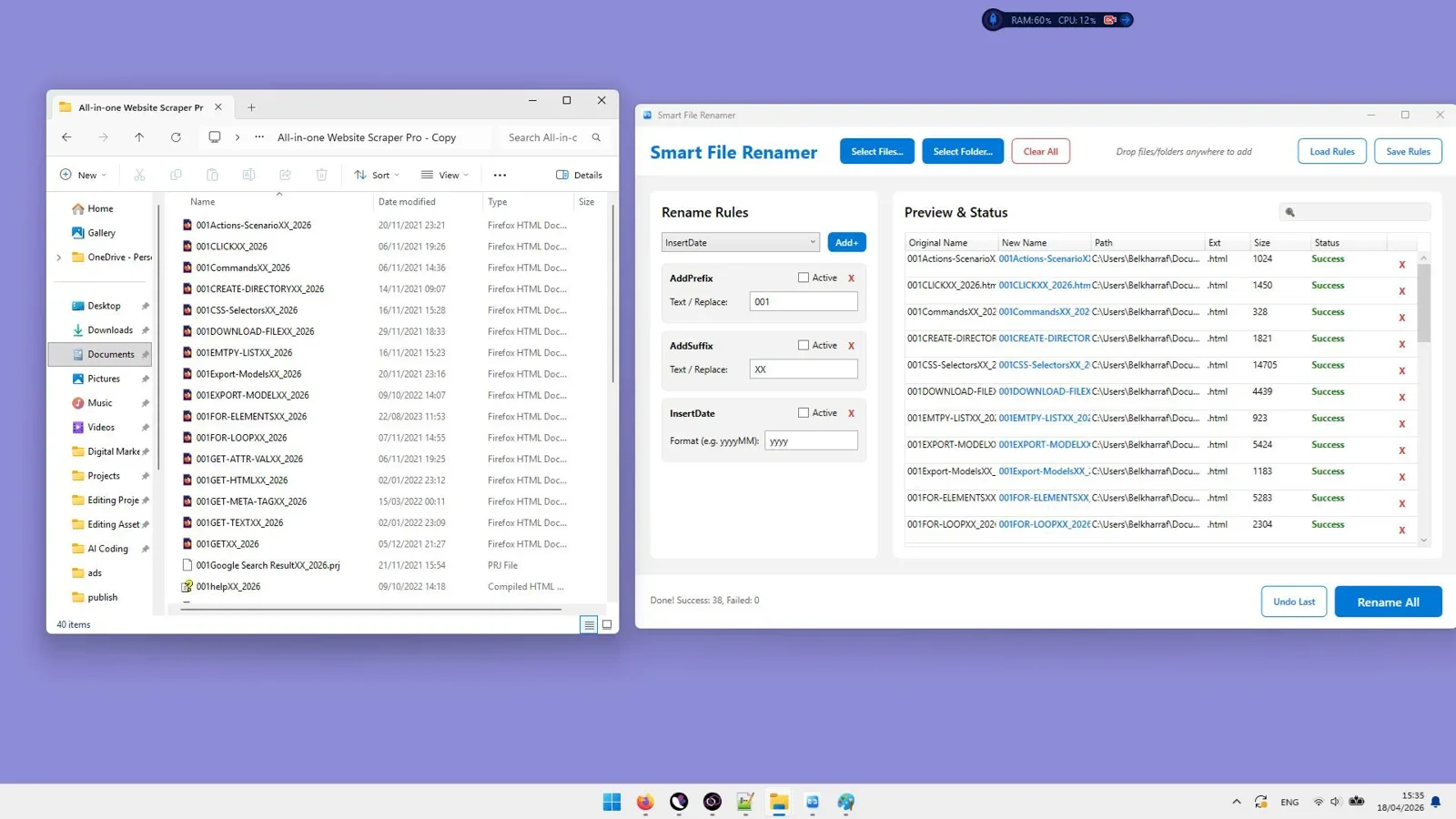
Step 1: Load Files into the Application
Launch Smart File Renamer on your PC. Drag and drop your target files or select "Add Folder" to import entire directories and subfolders into the workspace.
Step 2: Add Renaming Rules
Click on "Add Rule" to select from available transformation modules:
- Replace Text: Swap specific keywords or spaces (e.g., replace
DraftwithFinal). - Change Case: Convert filenames to standard Title Case or lower case.
- Insert Text: Add a project name prefix (e.g.,
2026_Marketing_) or version suffix. - Renumber: Append clean sequential numbers (e.g.,
001, 002, 003) starting at any custom index.
Step 3: Review the Live Preview
Examine the side-by-side preview panel. The software displays the original name next to the projected new name in real time. If a rule produces an undesired title, adjust the rule settings or toggle it off immediately.
Step 4: Execute and Secure Your Files
Click the "Rename" button. Smart File Renamer modifies all designated file names on your PC in milliseconds. If you ever realize you made an incorrect rule configuration after renaming, simply click "Undo" to restore all original filenames instantly.
Final Verdict
Final Verdict
Who should use this tool?
Photographers, software developers, administrative teams, and Windows power users who require fast, reliable, multi-rule batch file renaming without writing complex terminal commands or risking accidental data loss.
Overall Rating: 4.9 / 5
Frequently Asked Questions
How do I rename multiple files at once in Windows 11?
You can select all files in File Explorer, press F2, type a new name, and press Enter. Windows will append sequential numbers in parentheses. For more advanced naming patterns, rule combinations, or extension changes, use a dedicated desktop utility like Smart File Renamer.
Can I batch rename file extensions in Windows without coding?
Yes. While changing file extensions natively requires PowerShell or Command Prompt scripts, Smart File Renamer includes a built-in Extension rule that allows you to change or standardize extensions across thousands of files simultaneously with a visual preview.
Is Smart File Renamer safe for confidential business files?
Yes. Smart File Renamer is a 100% offline desktop application for Windows. It processes all file operations locally on your computer without sending data or filenames to external cloud servers.
What happens if I make a mistake while batch renaming files?
Unlike terminal scripts or standard Windows File Explorer commands which can be difficult or impossible to revert completely, Smart File Renamer maintains an active session log with an instant Undo feature that restores your original filenames with one click.
Automate Your Windows File Renaming Today
Stop spending hours manually renaming files. Take total control over your file organization with live rule previews and complete undo safety.
Get Smart File Renamer →Windows Desktop Software - Lifetime Access




Comments (0)
Leave a Comment