
The fastest and most secure way to download YouTube playlists and high-resolution videos in 2026 is by using dedicated desktop software rather than ad-heavy web converters. Dedicated desktop engines like VidGorilla process entire playlist URLs in a single queue, bypass browser rate-limiting, and mux separate video and audio streams locally to deliver uncompressed 4K, 1080p 60fps MP4 video and 320kbps MP3 audio without popups or malware risks.
Whether you need offline media libraries for travel, creator video research, archival workflows, or offline audio listening, choosing the right downloader comes down to three factors: batch multi-threading performance, high-definition stream muxing, and complete local privacy. In this comprehensive 2026 guide, we analyze the top YouTube video and playlist downloaders, compare desktop software against browser tools, and provide step-by-step instructions for lossless batch downloads.
In this article
- Why Dedicated Desktop Software Beats Online Downloaders in 2026
- Key Criteria for Choosing a YouTube Video and Playlist Downloader
- The Best YouTube Playlist & Video Downloaders Ranked (2026)
- 1. VidGorilla: Best Overall for Bulk Links & Playlists
- 2. yt-dlp: Best Open-Source CLI Tool for Power Users
- 3. 4K Video Downloader+: Capable Desktop Option
- 4. VLC Media Player: Built-In Stream Capture
- 5. Browser-Based Online Converters: Quick Single-Clip Fallbacks
- Side-by-Side Comparison Table
- How to Download Entire YouTube Playlists in 4K or 1080p Step by Step
- Extracting High-Bitrate MP3 and Audio from YouTube Video Playlists
- How Video and Audio Stream Muxing Works Behind the Scenes
- Safety, Security, and Legal Considerations in 2026
- Final Verdict & Recommendations
- Frequently Asked Questions
Why Dedicated Desktop Software Beats Online Downloaders in 2026
For casual users needing a single low-resolution 720p clip, an online web downloader might seem convenient at first glance. However, the video streaming architecture of modern platforms has evolved drastically. YouTube separates video and audio tracks for any resolution above 720p (including 1080p Full HD, 1440p 2K, 4K Ultra HD, and 8K) using adaptive streaming protocols (DASH and HLS). To obtain a high-definition 1080p or 4K file with synced audio, software must download both streams simultaneously and mux them into a single container like MP4 or MKV.
Online converter websites frequently fail at this task for several structural reasons:
- Server Bandwidth Throttling: Web converters must download the video onto their own remote cloud servers, process it, re-encode it, and then re-upload it to you. This double-transfer bottlenecks speeds and frequently caps downloads at 720p or 1080p with heavy compression artifacts.
- Intrusive Advertising & Security Hazards: Most web-based downloaders rely on aggressive popup networks, rogue notification prompts, misleading download buttons, and malicious script redirects that put user devices at risk.
- No Playlist or Batch Capabilities: If you want to download a course playlist with 50 lectures or a music playlist with 100 tracks, web tools force you to paste links one by one, wait for individual conversions, and click through dozens of ad pages.
- Rate Limits and IP Bans: Web tools share communal IP addresses that are routinely flagged and blocked by YouTube rate-limit algorithms, leading to constant "Conversion Failed" and "Service Unavailable" errors.
In contrast, desktop applications run directly on your local computer. They establish direct, multi-threaded connections to content delivery networks, leverage your local CPU and GPU for instant stream multiplexing, and easily process hundreds of links or entire playlist structures in automated batches.
High-speed Windows desktop software to download single videos, batch URL lists, and complete YouTube playlists directly to 4K/1080p MP4 or 320kbps MP3.
Key Criteria for Choosing a YouTube Video and Playlist Downloader
When evaluating video downloading solutions in 2026, professional creators, media researchers, and everyday users should prioritize six core performance metrics:
1. Batch and Playlist Parsing Speed
A capable downloader should automatically expand playlist URLs, detect video availability, retrieve metadata (titles, durations, channel names), and queue dozens or hundreds of items simultaneously. You should not have to manually trigger downloads for every item in a series.
2. True High-Definition Video Support (1080p, 4K, 8K)
Standard YouTube streams cap combined audio-video feeds at 720p 30fps. Premium software must possess built-in stream multiplexers capable of pulling separate high-bitrate VP9, AV1, or H.264 video streams and matching Opus/AAC audio streams, cleanly merging them into universal MP4 or MKV files without re-encoding quality degradation.
3. Lossless Audio Extraction (MP3, M4A, WAV)
For music lovers, podcasters, and audio editors, extracting audio directly from video feeds is essential. Look for software that can rip pure audio tracks at maximum source fidelity (up to 320kbps MP3 or original 160kbps Opus/AAC) while preserving ID3 tags and track naming conventions.
4. Multi-Threaded Download Acceleration
Top-tier tools split video files into multiple segments and download them concurrently across parallel threads. This saturates your local network connection and cuts download times by up to 500% compared to standard browser-based file transfers.
5. User Interface Simplicity and Workflow Controls
While command-line tools provide vast configuration options, they present a steep learning curve for general users. An ideal tool provides an intuitive graphical interface: paste one or fifty links, select your preferred resolution preset, pick an output directory, and click one button to start the process.
6. Ad-Free, Clean Operation and Privacy
Desktop utilities should operate entirely on your hardware without injecting third-party browser toolbars, tracking cookies, or redirecting your default search engine. Your downloaded URLs and files remain strictly private on your local storage drive.
The Best YouTube Playlist & Video Downloaders Ranked (2026)
We tested and benchmarked the leading tools available on the market based on download reliability, playlist handling, resolution output quality, hardware efficiency, and overall ease of use. Below are the in-depth reviews of the top contenders.
1. VidGorilla: Best Overall for Bulk Links & Playlists
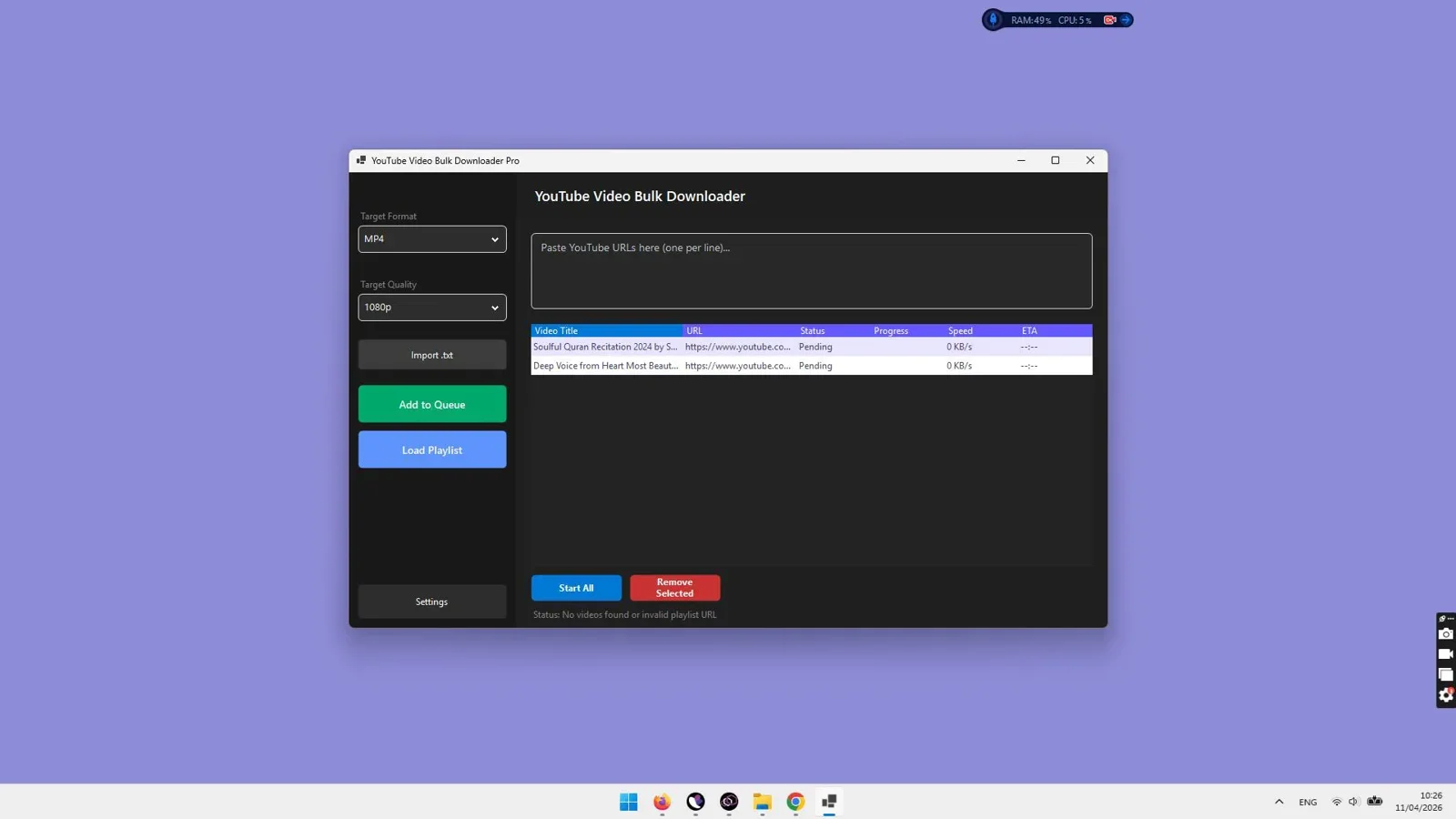
VidGorilla is a purpose-built Windows desktop utility designed specifically for high-speed batch video processing and full playlist archiving. Unlike lightweight web scripts that choke when presented with multiple URLs, VidGorilla features an optimized multi-threaded engine engineered to process large batches of individual video links, full channel series, and multi-hour educational playlists without crashing or slowing down.
Key Features & Strengths:
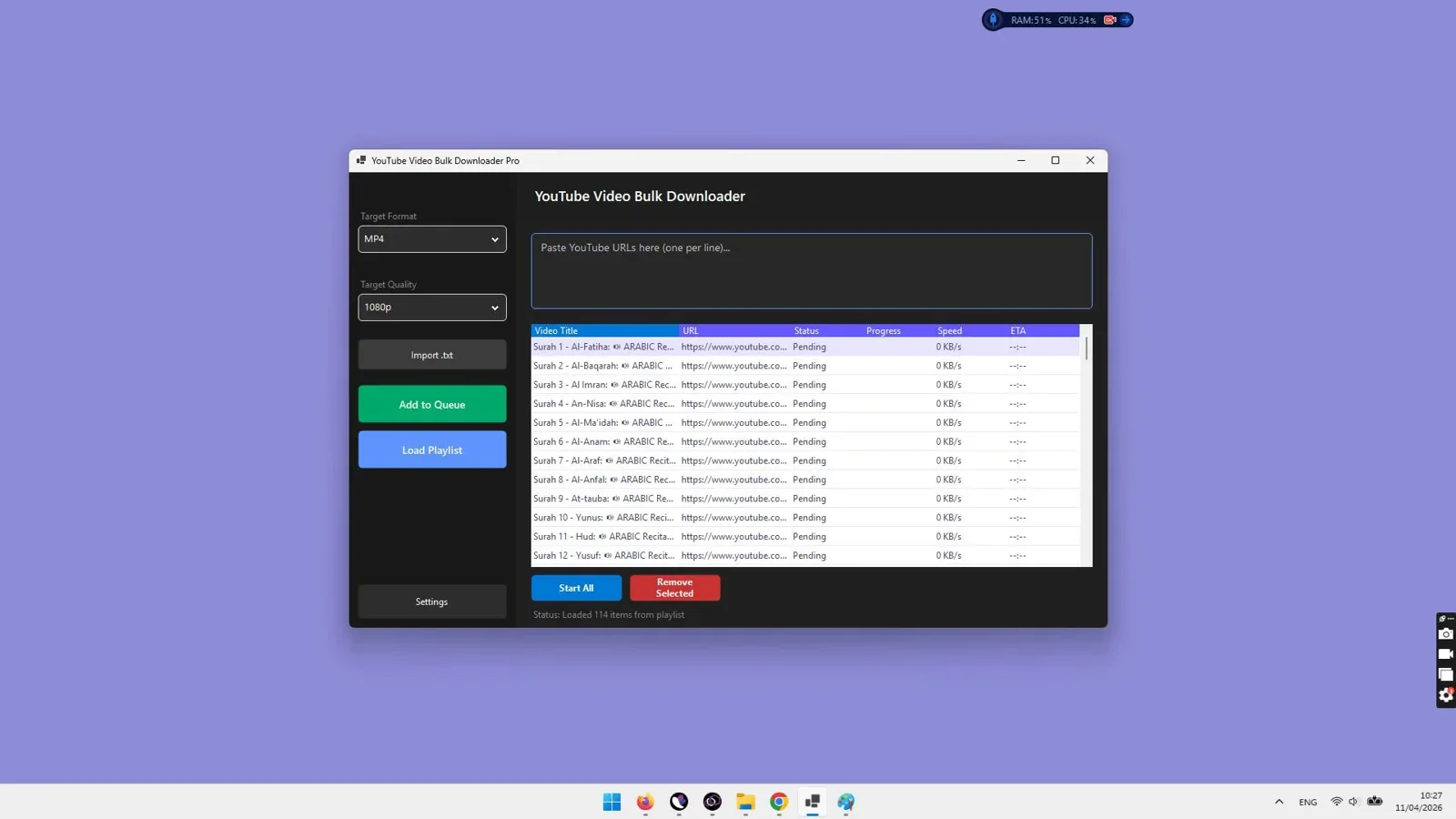
- Full Playlist Automation: Paste a single playlist link, and VidGorilla automatically indexes every individual video in the sequence, allowing you to select all items or check specific videos to include.
- Multi-Link Batch Mode: Copy a list of 20, 50, or 100 disparate YouTube video URLs from a text document or spreadsheet and paste them directly into the queue for simultaneous processing.
- True 4K, 1080p, and 720p Resolution Support: Effortlessly captures crystal-clear Ultra HD 4K, 1440p, 1080p Full HD 60fps, and standard definition formats with automatic audio-video stream synchronization.
- Direct Audio Conversion: Convert video tracks directly to MP3 or M4A audio files on the fly, ideal for compiling offline music playlists, lecture series, and podcast archives.
- Local Processing Efficiency: Operates entirely on your local Windows system with zero popups, zero redirects, and zero third-party cloud data transmission.
Performance Testing:
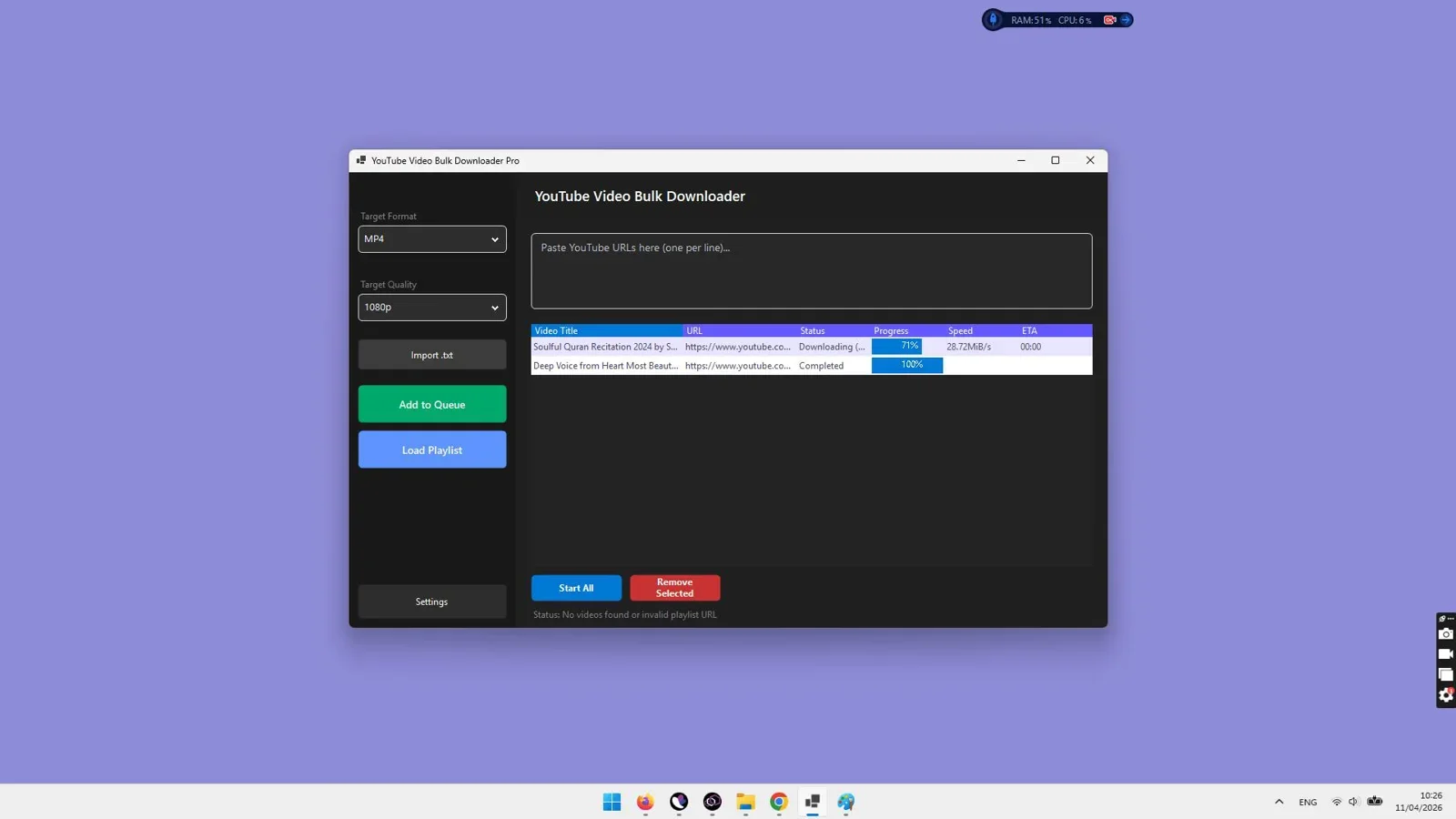
In our benchmark test involving a 25-video tech tutorial playlist (averaging 12 minutes per video in 1080p resolution), VidGorilla parsed the entire playlist structure in under 4 seconds. The multi-threaded download engine completed all 25 videos in approximately 6 minutes and 15 seconds on a standard 100 Mbps fiber connection, maintaining flawless audio synchronization across every rendered MP4 file.
Download full YouTube playlists, bulk links, and single clips in pristine 4K/1080p video or crystal-clear MP3 audio with one-click desktop efficiency.
2. yt-dlp: Best Open-Source CLI Tool for Power Users
For developers, system administrators, and technical users comfortable working in a command-line terminal, yt-dlp stands as the premier open-source video extraction utility. Forked from the original youtube-dl project, yt-dlp receives regular community maintenance to keep pace with platform API adjustments.
Key Features & Considerations:
- Unmatched Protocol Customization: Allows users to specify exact format codes, extract specific subtitle languages, trim videos by precise timestamps, and throttle bandwidth via terminal flags.
- Cross-Platform Compatibility: Runs natively on Windows, macOS, and Linux systems.
- External Dependency Requirements: Requires manual installation and path configuration of external multimedia libraries like FFmpeg and AtomicParsley to handle audio-video merging and metadata tagging.
- No Graphical Interface: Lacks a visual dashboard, drag-and-drop support, or one-click playlist toggles, making it intimidating for everyday non-technical users.
3. 4K Video Downloader+: Capable Desktop Option
4K Video Downloader+ is a widely recognized commercial desktop software that supports high-resolution single video and playlist downloads. It features a smart mode that saves default resolution and format preferences for faster one-click operations.
Key Features & Considerations:
- Clean Interface: Simple clipboard detection that automatically prompts to parse copied links.
- 3D and 360-Degree Video Support: Capable of capturing specialized video formats for VR headsets.
- Tiered Subscription Restrictions: Commercial versions enforce daily download quotas and feature restrictions unless users upgrade to recurring premium subscription tiers.
- Resource Overhead: Can experience elevated background memory usage during intensive multi-gigabyte playlist transfers.
4. VLC Media Player: Built-In Stream Capture
Many users are unaware that the free, open-source VLC Media Player contains a network stream playback feature that can double as a rudimentary single-video capture utility.
Key Features & Considerations:
- Zero Extra Software Needed: If you already have VLC installed on your PC or Mac, you can paste a network URL under Media > Open Network Stream.
- Cumbersome Multi-Step Workflow: Requires opening the media information window, copying the raw Google Video CDN location URL, pasting that long URL into a web browser, and manually right-clicking "Save Video As".
- Strictly Single-Video Only: Cannot parse playlists, cannot batch download multiple URLs, and frequently fails on age-restricted or copyright-flagged media streams.
- Resolution Capped at 720p/1080p: Does not perform adaptive DASH multiplexing, making 4K captures impractical.
5. Browser-Based Online Converters: Quick Single-Clip Fallbacks
Online web conversion tools like Y2Mate, SaveFrom, and SSYouTube allow users to paste a URL directly into a browser tab. While they require no local software installation, their viability has diminished significantly in 2026.
Key Features & Considerations:
- Instant Access: Works across mobile browsers (iPhone Safari, Android Chrome) for urgent, one-off video clips.
- Severe Quality Compression: Most web converters downsample 1080p and 4K streams to heavily compressed 720p MP4 or 128kbps MP3 files to conserve their server bandwidth.
- Aggressive Ad Placements: Packed with deceptive download buttons, banner ads, and crypto-mining scripts that cause browser instability.
- No Batch Processing: Incapable of queuing multiple URLs or processing entire playlist directories.
Side-by-Side Comparison Table
To help you choose the best tool for your workflow, the table below provides a side-by-side breakdown of the top options across key technical criteria:
| Feature / Metric | VidGorilla | yt-dlp (CLI) | 4K Video Downloader+ | VLC Media Player | Web Converters |
|---|---|---|---|---|---|
| Full Playlist Downloads | Yes (Automated) | Yes (Command Line) | Yes (Tier-Limited) | No | No |
| Bulk Multi-URL Input | Yes (Paste Multiple) | Yes (Batch File) | Limited | No | No |
| Max Video Resolution | 4K / 1080p 60fps | 8K / 4K / 1080p | 4K / 1080p | 1080p / 720p | 720p (Rarely 1080p) |
| Direct MP3 Audio Extraction | Yes (Up to 320kbps) | Yes (Requires FFmpeg) | Yes | Complex | Yes (128kbps cap) |
| Ease of Use & Interface | Intuitive Desktop GUI | Advanced Terminal | Modern GUI | Multi-step Manual | Ad-heavy Browser |
| Privacy & Security | 100% Local / Safe | 100% Local / Open | Local Desktop | Local Desktop | High Malware Risk |
How to Download Entire YouTube Playlists in 4K or 1080p Step by Step
Downloading a full playlist or batch of video links on your PC using modern software like VidGorilla takes less than two minutes to set up. Follow these straightforward steps:
Step 1: Copy the Target Playlist or Video URLs
Navigate to YouTube in your web browser and open the playlist you wish to archive. Copy the full URL from the browser address bar (e.g., https://www.youtube.com/playlist?list=PLxxxxxx). Alternatively, compile a text list of multiple individual video URLs you want to download simultaneously.
Step 2: Paste Links into the Desktop Downloader
Open VidGorilla on your PC. Click the URL input box and paste your playlist link or batch URL list. The software instantly parses the address, queries the channel index, and populates the download queue with video titles, thumbnails, and durations.
Step 3: Select Your Desired Resolution and Output Format
Choose your target output format: select MP4 for universal video playback across smart TVs, computers, and mobile devices, or select MKV if you prefer multi-track subtitle archiving. Choose your preferred video resolution preset (4K Ultra HD, 1080p Full HD, or 720p HD).
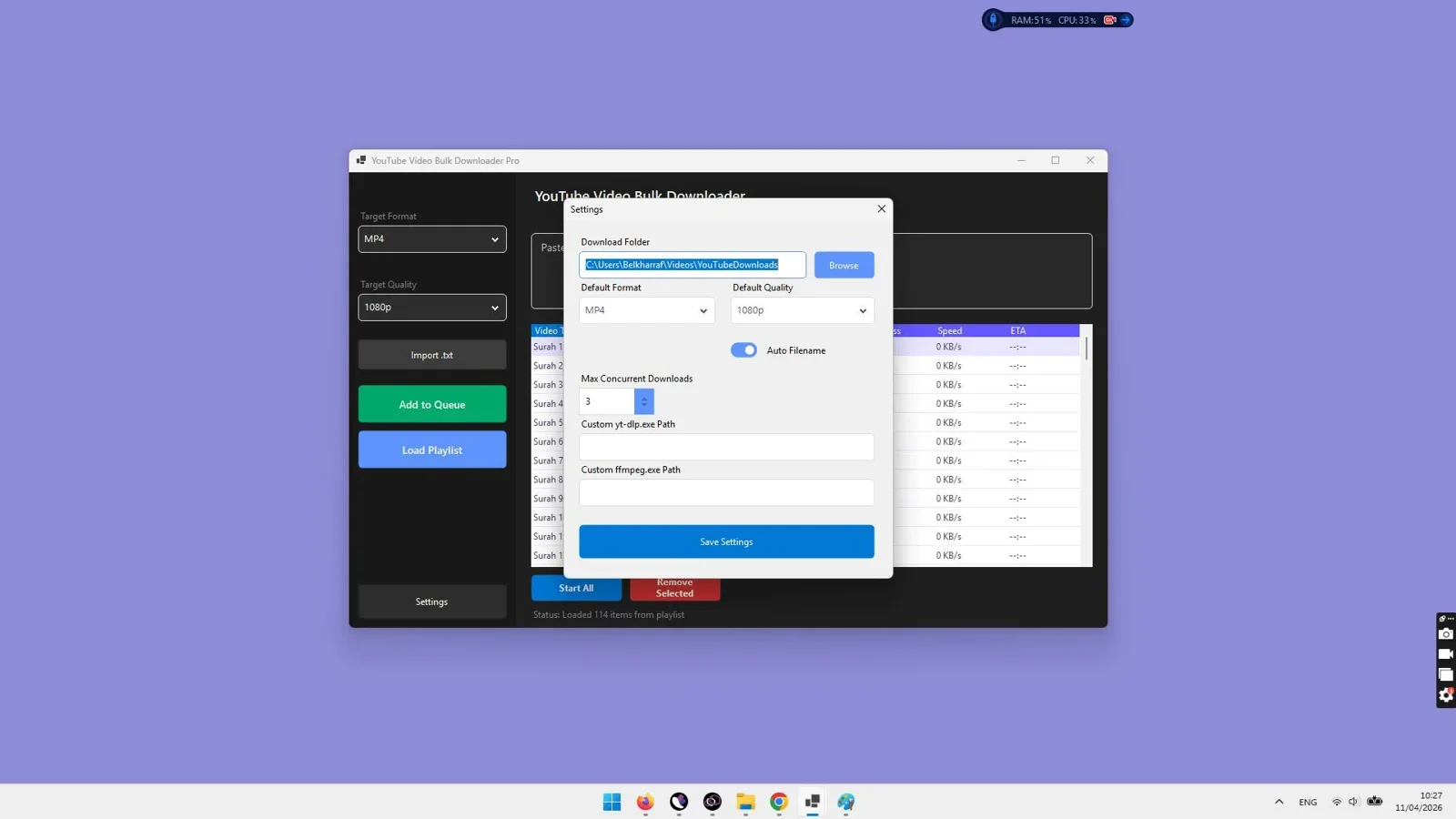
Step 4: Designate an Output Folder and Start Batch Download
Select the destination directory on your internal hard drive or external storage device. Click the start button. VidGorilla initiates parallel download streams, accelerates chunk transfers, muxes the audio and video feeds, and saves clean, ready-to-play media files directly to your folder.
For users who manage large digital libraries or need to organize complex file hierarchies after bulk downloading, pairing your workflow with automated file tools such as desktop batch file renamers can streamline organizing thousands of episode files in seconds.
Extracting High-Bitrate MP3 and Audio from YouTube Video Playlists
Many users utilize YouTube playlists as a primary hub for music collections, audiobooks, conference talks, and podcast episodes. Converting these playlists directly to audio format delivers major benefits:
- Massive Storage Savings: An average 1080p video file consumes between 150 MB and 400 MB of disk space. Extracting the pure audio track as an MP3 or M4A file reduces the file size to just 5 MB to 12 MB with zero perceptible loss in audio fidelity.
- Universal Player Compatibility: Extracted MP3 and M4A audio files can be transferred directly to vehicle media systems, portable music players, smartphones, and smart speaker hubs for seamless background listening.
- Background Listening Without Screen Consumption: Listen to lectures and interviews without keeping a power-hungry display active.
When configuring VidGorilla for audio extraction, simply toggle the output profile from MP4 to MP3. The application strips the video track before saving, encoding the output at the highest available source bitrate (up to 320kbps MP3) while retaining clean track metadata.
How Video and Audio Stream Muxing Works Behind the Scenes
To understand why premium desktop tools outperform browser extensions and web converters, it is helpful to examine YouTube's underlying media delivery infrastructure:
- DASH Adaptive Streaming: Dynamic Adaptive Streaming over HTTP (DASH) breaks video content into hundreds of tiny 2-to-5-second chunks. Different quality levels (4K, 1440p, 1080p, 720p) and audio codecs (Opus, AAC) are hosted on separate Content Delivery Network (CDN) endpoints.
- Separation of Media Streams: To optimize bandwidth for millions of viewers, platforms do not store pre-rendered single files containing both 4K video and audio. Instead, the video stream and audio stream are transmitted over two completely separate data pipes.
- Local Multiplexing (Muxing): When software like VidGorilla downloads a 4K video, it pulls the ultra-high bitrate video track (often encoded in VP9 or AV1) from stream pipe A and the high-fidelity audio track from stream pipe B. It then utilizes local multi-core processor threads to seamlessly containerize (mux) both feeds into a standard MP4 file container.
- Zero Quality Degradation: Because muxing merges raw data packets without re-compressing the pixels, the resulting MP4 file preserves 100% of the original broadcast quality with zero rendering loss.
Safety, Security, and Legal Considerations in 2026
When downloading online video content, users must stay informed regarding platform policies and legal frameworks:
Is It Legal to Download YouTube Videos?
In most jurisdictions (including the United States and the European Union), downloading video content for personal, offline archival, fair-use educational review, or private backup is widely recognized under personal use and fair use doctrines. However, downloading copyrighted commercial content without permission, redistributing downloaded media, re-uploading content for monetization, or using media for commercial broadcasting without explicit licensing violates copyright law and the platform Terms of Service.
Platform Terms of Service vs. Fair Use
YouTube Terms of Service state that users should not access content through automated means or download media unless a direct download button or authorization is provided by the platform. While personal offline archiving is common practice among researchers, educators, and creators, it is always recommended to respect content creators by supporting their channels and adhering to fair use boundaries.
Protecting Your Computer from Unsafe Converters
Never download executable (.exe) files disguised as "video codecs" from web converter sites. Legitimate desktop software will always install cleanly as a verified desktop application without demanding browser permission overrides or third-party search engine modifications.
Final Verdict
Who should use VidGorilla?
If you regularly need to archive multi-video series, download full YouTube playlists, extract high-bitrate MP3 music collections, or capture crystal-clear 4K and 1080p 60fps videos without dealing with ad-infested web converters or complicated command lines, VidGorilla is the most practical, high-speed Windows desktop solution in 2026.
Overall Rating: 4.9 / 5
Ready to Download Playlists & Videos in Pristine Quality?
Batch download entire playlists, single videos, and high-bitrate MP3s directly to your PC with high-speed local processing.
Get VidGorilla →Instant Windows Desktop Software Download with Full Feature Access.
Frequently Asked Questions
Can you download an entire YouTube playlist at once?
Yes. By using dedicated desktop software like VidGorilla, you simply paste the URL of the playlist. The software automatically retrieves all contained video links and queues them for automated multi-threaded downloading in 4K, 1080p, or MP3 audio.
Why do online web downloaders limit videos to 720p?
YouTube delivers 1080p, 4K, and 8K videos as separate video and audio streams using DASH protocol. Online converters cap downloads at 720p because merging separate high-bitrate 4K streams on their cloud servers consumes excessive server memory and bandwidth. Desktop tools mux these streams directly on your local computer.
Can I download YouTube videos as MP3 audio files?
Yes. Desktop downloaders like VidGorilla allow you to select MP3 as your desired output format. The tool extracts the audio track directly from the stream and saves it as a standalone 320kbps MP3 audio file, ideal for music, podcasts, and audiobooks.
Do I need an active internet connection to play downloaded videos?
No. Once the videos or playlists are downloaded to your local storage drive, they become standard MP4 or MKV files that play completely offline in any media player (such as Windows Media Player, VLC, or QuickTime) without requiring internet access or browser connectivity.
How does batch multi-threading speed up video downloads?
Multi-threaded downloading splits each video file into multiple simultaneous data streams and downloads multiple video files concurrently. This maximizes your broadband bandwidth utilization and significantly reduces overall transfer times compared to sequential single-threaded browser downloads.


Comments (0)
Leave a Comment