
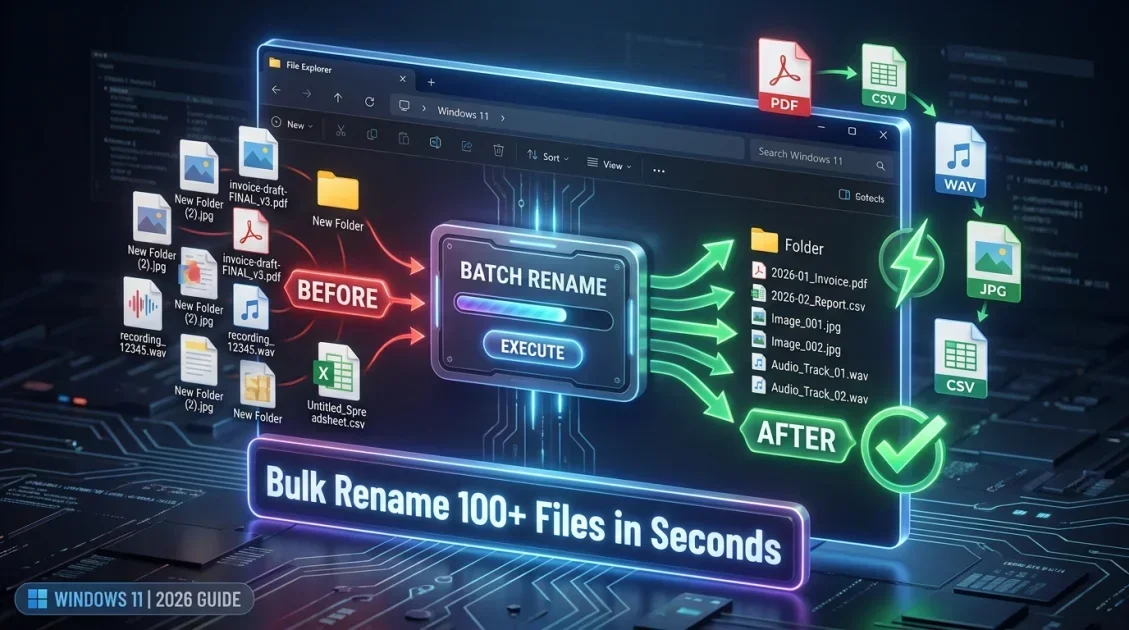
To bulk rename files and change file extensions on Windows PC in 2026, you can utilize built-in File Explorer settings for basic filename updates, execute Command Prompt or PowerShell scripts for wildcard extension changes, or deploy specialized offline software like Smart File Renamer to process multi-format directories with live previews and complete undo safety. Restructuring large directories of camera RAW images, media tracks, and document archives ensures seamless data management across local hard drives and cloud storage.
In this article
- Why Standardizing File Extensions and Names Matters on PC
- Prerequisite: How to Show File Extensions in Windows 11 and 10
- Method 1: Manual Extension Renaming via File Explorer
- Method 2: Changing Extensions in Bulk Using Command Prompt
- Method 3: Batch Extension and Name Renaming in PowerShell
- Method 4: Automated Extension and File Renaming with Smart File Renamer
- Specialized Workflows: Audio (WAV/MP3), Photos (RAW/JPEG), and PDF Archives
- E-Commerce & Digital Seller Workflows: Etsy, KDP, and Asset Bundles
- Handling Windows Path Length Limits and Special Characters
- Bulk Renaming Methods Comparison for Windows
- Best Practices for Bulk File Extension Management
- Final Verdict
- Frequently Asked Questions
Why Standardizing File Extensions and Names Matters on PC
File extensions such as .jpg, .png, .pdf, or .wav instruct Windows on which application should open a specific file. When downloading files from different sources or exporting assets from creative suites, inconsistent naming and extension formatting can cause unexpected system errors.
Common file extension challenges on Windows include:
- Mixed Case Extensions: Inconsistent extensions like .JPEG, .Jpeg, and .jpg in the same folder can cause web servers and database scripts to miss files due to case sensitivity.
- Missing Extensions: Files downloaded from online databases or exported from legacy software often lose their trailing file extensions entirely, rendering them unopenable in Windows.
- Incorrect MIME Types: Changing a file type label without converting the actual file contents can break file associations.
- Unorganized Media Archives: Audio recordings such as .wav or .mp3 files often contain camera or recorder timestamps rather than track names and artist metadata.

Bulk rename files and change file extensions on Windows with rule stacking, live preview, and instant undo safety.
Prerequisite: How to Show File Extensions in Windows 11 and 10
By default, Windows hides known file extensions to simplify Explorer views. Before attempting to rename extensions manually or in scripts, you must configure Windows to display file extensions explicitly.
Enabling File Name Extensions in Windows 11
- Open Windows File Explorer by pressing the Windows key plus E.
- Click the View tab located on the top command bar.
- Hover over Show in the dropdown menu.
- Check the box next to File name extensions.
Enabling File Name Extensions in Windows 10
- Open File Explorer and select the View tab at the top left.
- In the Show/hide group, check the box labeled File name extensions.
Once enabled, filenames will display their full trailing tags such as document.docx instead of just document.
Method 1: Manual Extension Renaming via File Explorer
For a small handful of files, you can modify extensions directly inside File Explorer:
- Select the target file and press F2.
- Highlight the text following the dot, such as changing sample.txt to sample.csv.
- Press Enter. Windows will display a warning dialog stating: "If you change a file name extension, the file might become unusable."
- Click Yes to confirm the change.
This method is simple for individual files, but it is impractical for bulk operations involving hundreds or thousands of items across directories.
Method 2: Changing Extensions in Bulk Using Command Prompt
If you need to change all file extensions of a specific type within a single folder, the Command Prompt ren command is a fast command-line option.
Step-by-Step Command Prompt Renaming
- Press Windows key plus R, type cmd, and press Enter.
- Navigate to your target directory using the cd command, for example:
cd C:\Users\Username\Pictures\Import. - To change all .jpeg files to .jpg, run:
ren *.jpeg *.jpg
Command Prompt processes the entire folder in milliseconds. However, it cannot modify subfolders recursively without additional switches, and it lacks preview or undo functions.
Method 3: Batch Extension and Name Renaming in PowerShell
Windows PowerShell provides deeper scripting control, allowing recursive folder scans and string replacements.
Changing File Extensions Recursively in PowerShell
To convert all .htm files across a directory and all subdirectories into .html files, execute the following command:
Get-ChildItem -Path "C:\MyFolder" -Filter *.htm -Recurse | Rename-Item -NewName { [System.IO.Path]::ChangeExtension($_.Name, ".html") }
Converting Upper Case Extensions to Lower Case
Camera imports often arrive with uppercase extensions like .JPG. To standardize all extensions to lowercase in PowerShell:
Get-ChildItem -Path "C:\Photos" | Rename-Item -NewName { $_.BaseName + $_.Extension.ToLower() }
Method 4: Automated Extension and File Renaming with Smart File Renamer
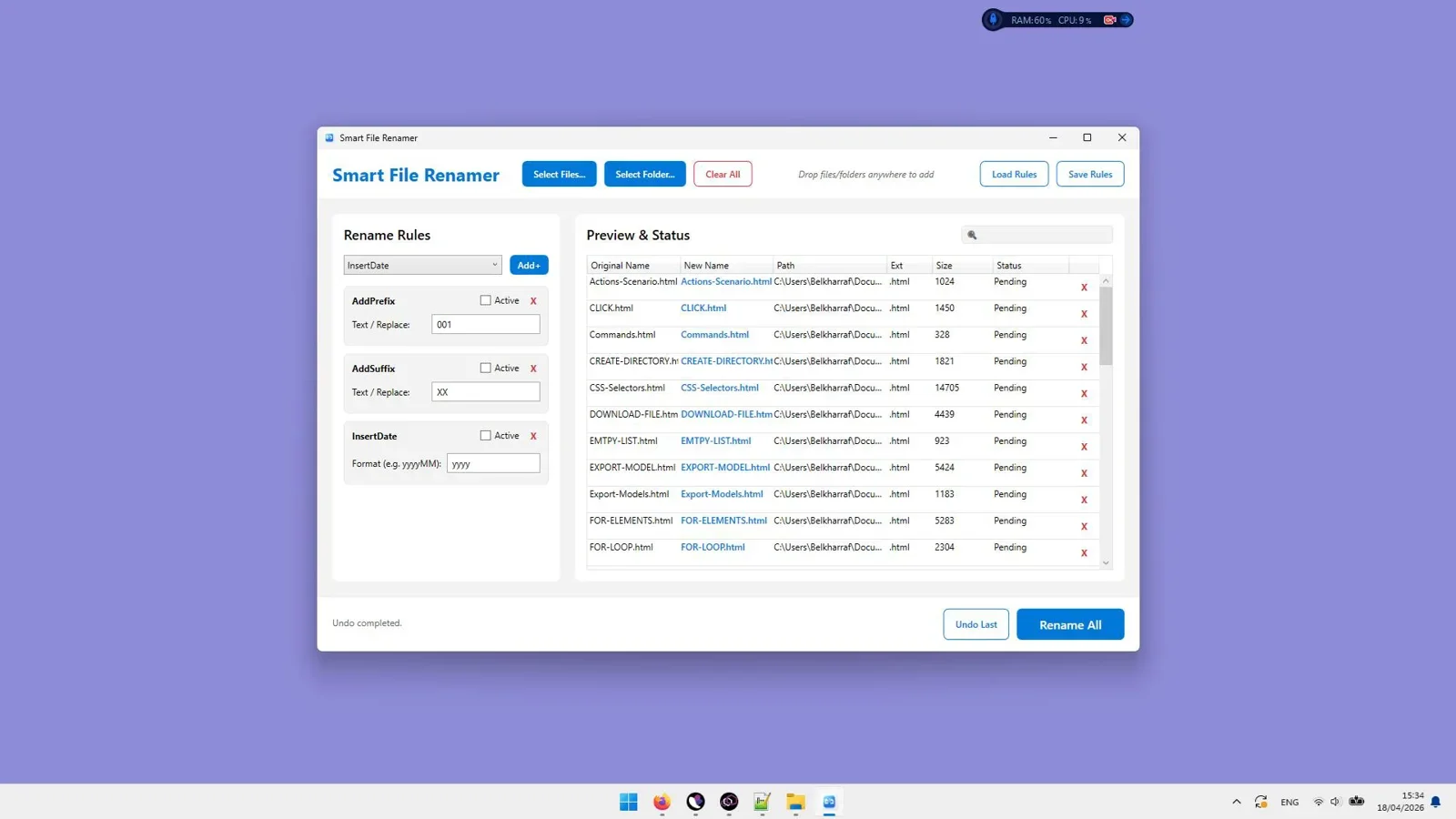
While command-line scripts work well for programmers, non-technical users risk breaking folder structures or losing track of modified files. Smart File Renamer offers a visual desktop environment built specifically for Windows file extension and name management.
Key Features for Bulk Extension Management
- Dedicated Extension Rule Module: Add an Extension rule to change, add, or remove trailing tags across all selected files regardless of file type.
- Case Normalization: Force all extensions across an entire hard drive to lowercase or UPPERCASE with one click.
- Simultaneous Name & Extension Rules: Stack a text replacement rule (such as replacing spaces with underscores) along with an extension rule in the same processing pass.
- Side-by-Side Live Preview: Verify both the new filename and the new extension in real time before applying changes to disk.
- One-Click Undo Safety: Revert any bulk extension modification back to its original file extension instantly.
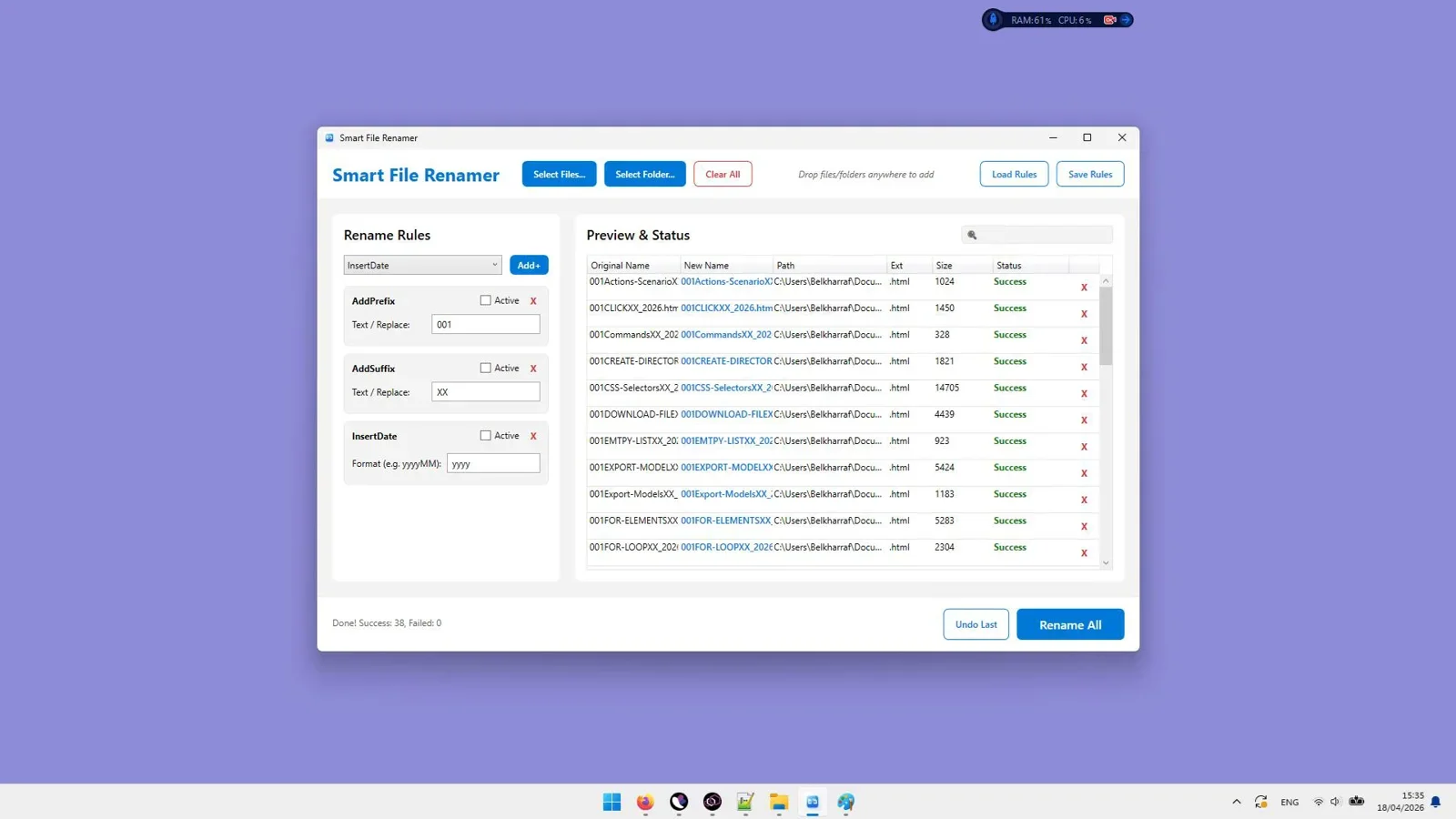

Bulk rename files and change file extensions on Windows with rule stacking, live preview, and instant undo safety.
Specialized Workflows: Audio (WAV/MP3), Photos (RAW/JPEG), and PDF Archives
1. How to Rename a WAV or MP3 File in Windows
Audio recordings created on digital field recorders or voice memos often carry generic names like STE-001.WAV or ZOOM0001.WAV. To bulk rename WAV files on Windows:
- Load your audio files into Smart File Renamer.
- Add an Insert Text rule to prepend the project or artist name, for example:
Podcast_Ep12_. - Add a Renumber rule starting from 01 to assign track order.
- Review the live preview (such as Podcast_Ep12_01.wav) and click Rename.
2. Standardizing Photography RAW & JPEG Files
When shooting RAW + JPEG simultaneously, camera bodies generate dual files with identical base names like _DSC1001.CR2 and _DSC1001.JPG. Smart File Renamer processes paired extensions simultaneously, ensuring the base filename remains synchronized across both photo formats.
3. PDF Invoice & Legal Document Organization
Scanned documents frequently lack consistent extensions or possess appended tracking tags like Invoice_101_scanned.pdf.TMP. Using Smart File Renamer, you can strip trailing temporary tags and restore proper .pdf extensions in bulk across thousands of archived documents.
E-Commerce & Digital Seller Workflows: Etsy, KDP, and Asset Bundles
Sellers offering digital downloads on marketplaces like Etsy, Gumroad, or Amazon KDP manage complex bundles of printables, planners, clip art, and interior templates. Customers expecting instant digital delivery are easily confused by messy, inconsistent filenames or unlabelled extensions.
By using Smart File Renamer to organize digital product bundles on PC, sellers can:
- Prepend clear product titles to digital asset downloads, for example:
Floral_Planner_A4_Printable_01.pdf. - Ensure all image mockups follow high-converting naming patterns before uploading to store listings.
- Clean export tags generated by Canva or Illustrator in seconds before packaging ZIP files for customers.
Handling Windows Path Length Limits and Special Characters
Windows operating systems enforce strict file naming conventions that can interrupt batch operations if ignored:
- Forbidden Symbols: Characters like \ / : * ? " < > | cannot be used in Windows file names. Smart File Renamer strips or replaces forbidden characters automatically during preview.
- Maximum Path Restrictions: Total path length (directory path plus filename) cannot exceed 260 characters in standard Windows installations. Long filenames nested inside deep subfolders can trigger file system errors. Keeping base names concise and using 3-digit zero-padded numbers (001) avoids path length truncation.
Bulk Renaming Methods Comparison for Windows
| Method | Bulk Extension Changes | Multi-Rule Support | Live Visual Preview | Undo Capability | Offline Data Privacy |
|---|---|---|---|---|---|
| File Explorer (F2) | No | No | No | Limited (Ctrl+Z) | 100% Local |
| Command Prompt (CMD) | Yes (Wildcards) | No | No | None | 100% Local |
| Windows PowerShell | Yes (Scripted) | Yes (Code) | No | None | 100% Local |
| Smart File Renamer | Yes (Visual Rule) | Yes (Visual Stacks) | Yes (Side-by-Side) | Full One-Click Undo | 100% Local PC |
Best Practices for Bulk File Extension Management
- Never Change Extension Types Blindly: Renaming .avi to .mp4 does not convert video codecs. Use media converters for format conversion; use renamers for tag correction.
- Always Preview Before Executing: Verify that your rule does not accidentally erase dots or trailing extension letters.
- Backup Critical Archives: Before executing bulk extension modifications across enterprise network drives, ensure a backup exists.
- Use Lowercase Extensions: Stick to lowercase extensions (such as .jpg instead of .JPG) to ensure consistent behavior on Linux servers and cloud hostings.
Final Verdict
Final Verdict
Who should use this tool?
Photographers, audio engineers, web developers, and Windows users who need a safe, visual tool to bulk rename files and edit file extensions across large PC folder structures.
Overall Rating: 4.9 / 5
Frequently Asked Questions
How do I change multiple file extensions at once in Windows 11?
You can use Command Prompt with ren *.oldext *.newext, run a PowerShell script, or use Smart File Renamer to select an Extension rule and apply it to all files visually.
Will changing a file extension ruin my file?
If you change the extension to an incorrect format (for example, renaming a .docx file to .jpg), the file will fail to open until you restore the original extension. Using Smart File Renamer ensures you can click Undo to restore the correct extension instantly.
How do I rename a WAV file in Windows?
Select the WAV file in File Explorer, press F2, type the new name, and press Enter. For batch WAV renaming, load the files into Smart File Renamer to apply prefix, date, or numbering rules.
Master Your Windows File Organization Today
Stop struggling with broken file extensions and unorganized folders. Automate your naming workflows with live rule previews and instant undo safety.
Get Smart File Renamer →Windows Desktop Software - Lifetime License




Comments (0)
Leave a Comment