
To download entire YouTube playlists or complete channel video archives in 4K, 1080p, or high-bitrate MP3 in 2026, the most reliable method is using a dedicated desktop batch downloader like VidGorilla. Desktop software allows you to paste a single playlist link, automatically expands and indexes every video in the sequence, and downloads all tracks concurrently across multi-threaded connections without manual clicking or browser rate limits.
Downloading playlists video by video through online browser converters is agonizingly slow, capped at low 720p resolutions, and plagued by popups. Whether you are archiving an educational lecture series, saving a creator video catalog for offline study, or backing up a curated music playlist as high-bitrate MP3s, this 2026 guide provides the exact step-by-step blueprint for bulk downloading entire playlists and channel collections with pristine visual and audio fidelity.
In this article
- Why Downloading Full Playlists Requires Dedicated Desktop Tools
- Prerequisites: What You Need for High-Speed Batch Downloading
- Step-by-Step Guide: How to Download Full Playlists with VidGorilla
- Batch Downloading Custom Multi-URL Lists
- How to Convert Full Video Playlists Directly into 320kbps MP3s
- Selecting the Optimal Resolution: 4K Ultra HD vs 1080p Full HD
- How Multi-Threaded Chunking Accelerates Bulk Transfers
- Comparing Playlist Download Methods: Desktop vs CLI vs Web Tools
- Capturing Subtitles, Closed Captions, and Video Metadata
- Troubleshooting Common Playlist Errors (Private, Deleted, or Blocked Videos)
- Advanced Workflows for Content Creators, Researchers, and Educators
- Organizing, Renaming, and Storing Your Downloaded Media Library
- Hardware, Storage Allocation, and External Drive Strategies
- Legal Guidelines & Platform Policy Best Practices
- Final Verdict on Playlist Downloader Software
- Frequently Asked Questions
Why Downloading Full Playlists Requires Dedicated Desktop Tools
A YouTube playlist can contain anywhere from five to several hundred videos. Attempting to download these videos using online web downloaders or standard browser extensions presents immediate structural roadblocks:
- Repetitive Manual Labor: Web tools require you to open every video URL individually, copy the link, paste it into an online converter box, wait for server encoding, navigate popup ads, and manually click download. For a 50-video playlist, this process can take hours of tedious effort.
- Server-Side Rate Limiting: Free online converters operate on shared server clusters. When you submit dozens of conversion requests in rapid succession, their servers trigger IP rate limit blocks, resulting in failed transfers and broken files.
- Resolution Capping at 720p: Modern high-definition video feeds (1080p, 1440p, 4K) are delivered by platform servers as isolated video and audio streams. Web converters avoid the heavy server computing power required to mux these streams, forcing you to download muddy 720p video with compressed audio.
- Memory Crashes on Long Sequences: Browser tabs frequently run out of memory when attempting to parse multi-hour playlist feeds, causing tabs to freeze or crash unexpectedly.
- Bandwidth Inefficiencies: Cloud-based online downloaders introduce a double-hop transfer bottleneck. The remote cloud converter must first download the video from the content delivery network, transcode it on their overburdened shared servers, and then stream it back down to your web browser. This intermediate step cuts download speeds dramatically and introduces high failure rates during extended multi-file operations.
Dedicated desktop applications solve all of these bottlenecks. By operating directly on your Windows PC, software like VidGorilla executes platform API queries directly, queues all items into a unified batch manager, and utilizes your computer local processing cores to assemble flawless 4K MP4 or MP3 files at maximum connection speed.
High-speed desktop utility built for Windows to download entire YouTube playlists, custom URL lists, and single videos in 4K, 1080p, and 320kbps MP3.
Prerequisites: What You Need for High-Speed Batch Downloading
Before initiating batch downloads for large playlists or multi-gigabyte video libraries, ensure you have the following setup ready:
- Sufficient Local Storage: A 1080p video file typically ranges from 150 MB to 400 MB per 10 minutes of footage. A 4K video file can easily exceed 1 GB to 2.5 GB for the same duration. For a 50-video playlist in 1080p, allocate at least 15 GB to 25 GB of free hard drive space. For extensive 4K archives, keeping 100 GB to 500 GB of free drive headroom is recommended.
- Stable Broadband Connection: Multi-threaded downloading maximizes your bandwidth. A 50 Mbps to 200 Mbps fiber or broadband connection ensures rapid batch completion without network timeouts. If you are connected over Wi-Fi, switching to a wired Gigabit Ethernet connection eliminates packet drops during multi-hour transfers.
- Dedicated Desktop Software: Install a specialized batch downloader such as VidGorilla to manage simultaneous queues and automated multiplexing.
- High-Speed Write Storage: If downloading high-bitrate 4K content across multiple concurrent streams, saving files to an internal solid-state drive (NVMe or SATA SSD) prevents write-speed bottlenecks during local stream assembly.
Step-by-Step Guide: How to Download Full Playlists with VidGorilla
Downloading an entire playlist in crystal-clear high definition using VidGorilla requires just four simple steps:
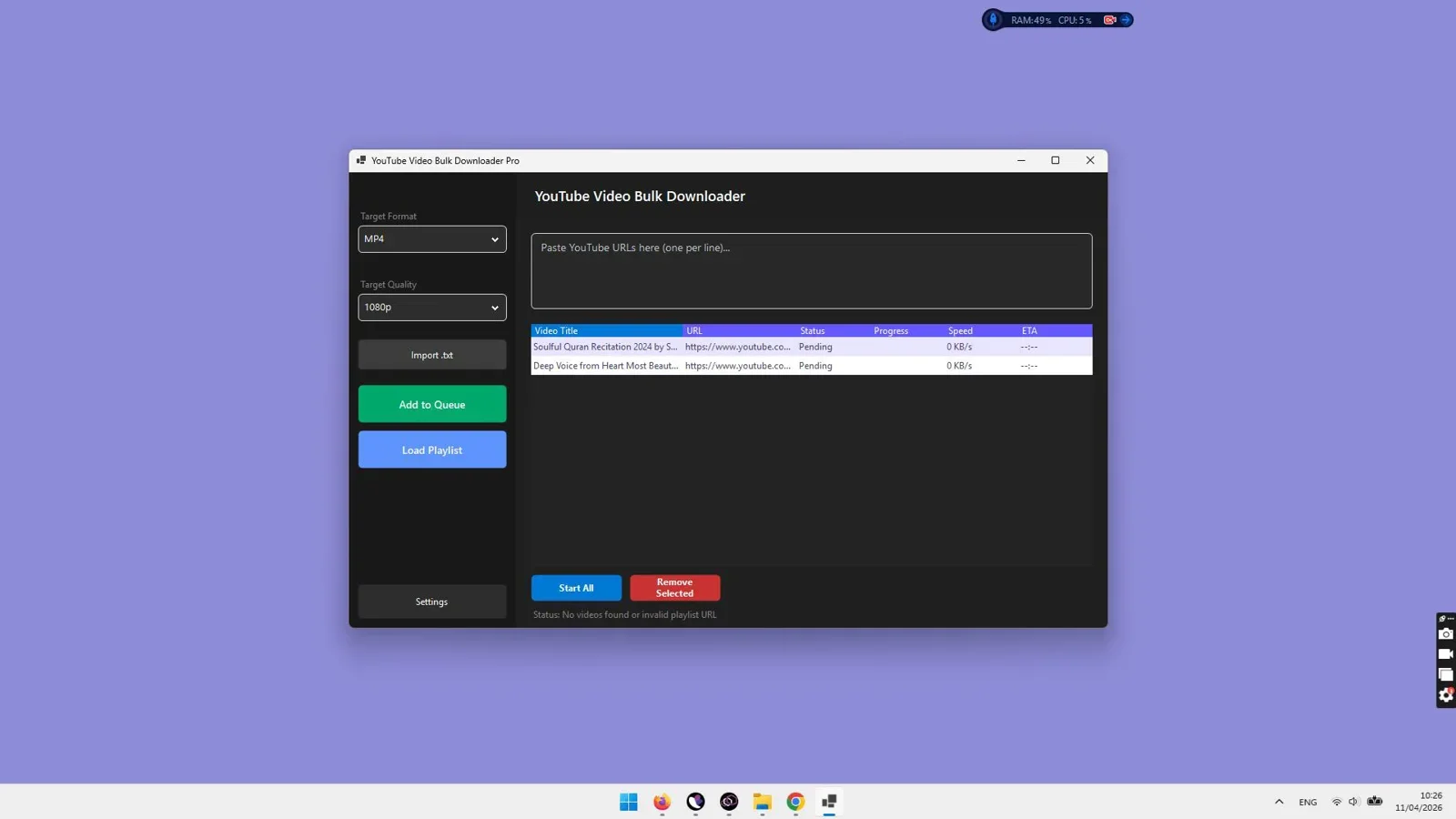
Step 1: Copy the Playlist URL from YouTube
Open YouTube in your browser, navigate to the target playlist page, and copy the complete URL from the address bar. A standard playlist URL follows this format: https://www.youtube.com/playlist?list=PLxxxxxxxxxxxxxxxx. You can also copy the URL of any individual video playing within a playlist (it will contain the &list=PLxxxx parameter).
Step 2: Paste the URL into VidGorilla and Index the Playlist
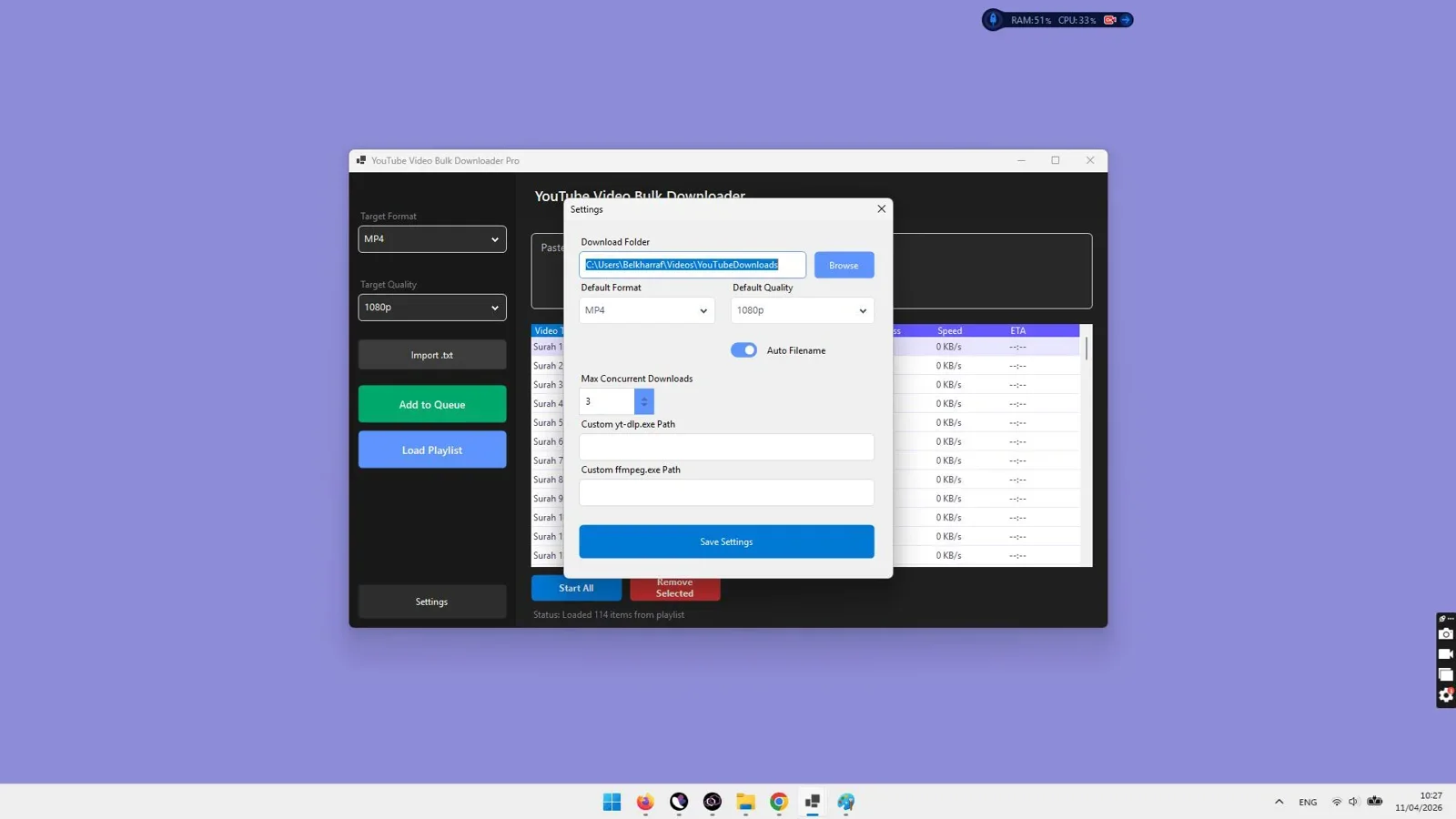
Launch VidGorilla on your Windows desktop. Click into the URL input field and paste the copied link. The software automatically detects the playlist identifier, queries the playlist manifest, and loads the entire list of video titles, durations, and thumbnails into your active queue in seconds.
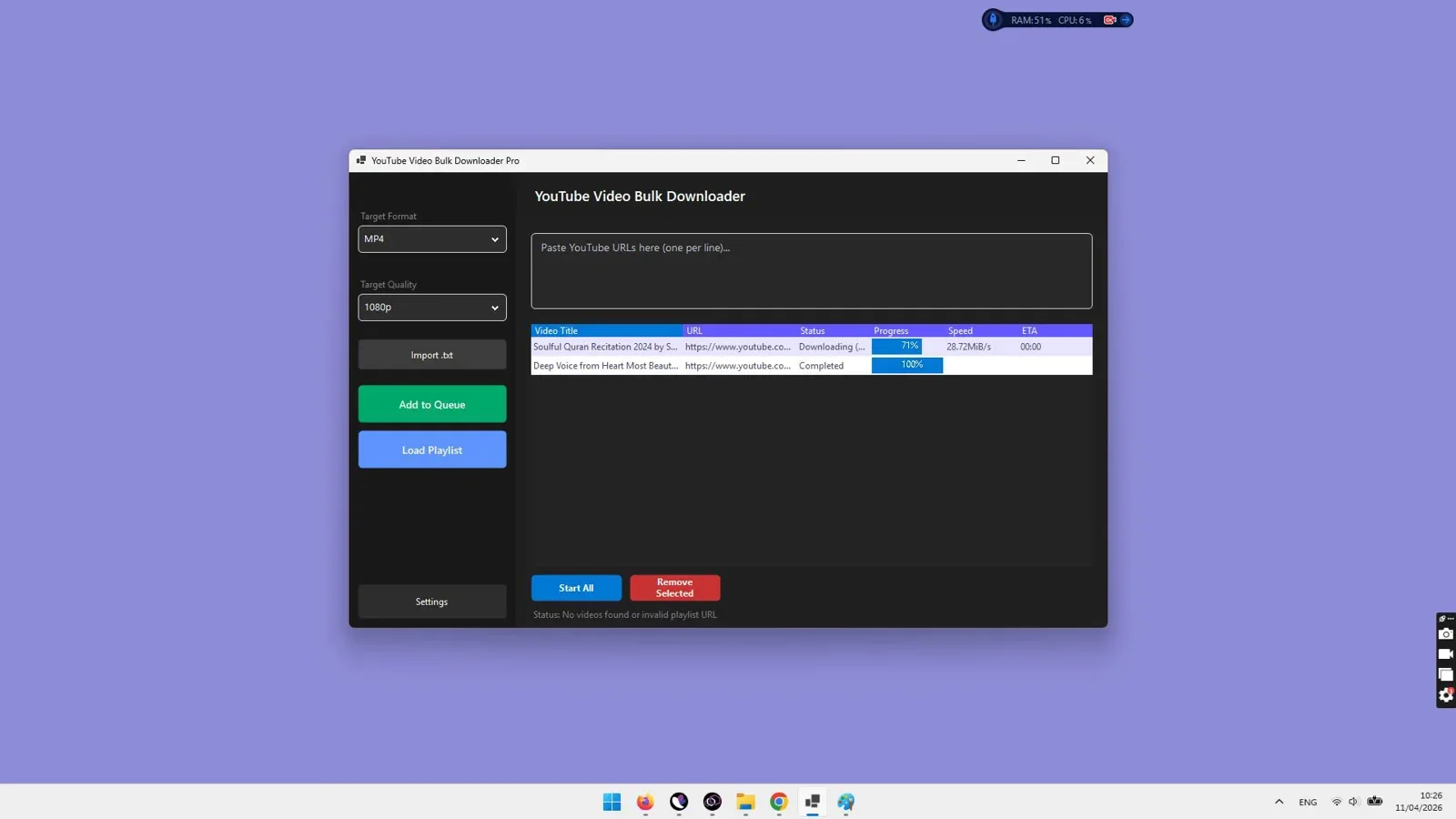
Step 3: Select All Items and Configure Video/Audio Format
Review the loaded queue. You can select all videos or uncheck specific clips you wish to skip. Choose your target container format (MP4 for universal compatibility or MKV for advanced subtitle tracks). Choose your target resolution: select 4K (2160p), 1080p Full HD, or 720p HD.
Step 4: Designate Output Directory and Start the Batch Queue
Click the browse button to choose your preferred destination folder on your local PC or an external hard drive. Click the download button. VidGorilla initiates multi-threaded parallel downloads, tracks individual progress bars, and automatically muxes the downloaded video and audio feeds into finished, ready-to-watch media files.
Batch Downloading Custom Multi-URL Lists
In many research and archival scenarios, you may need to download a disparate collection of 20, 50, or 100 videos that are not grouped into an official playlist. Manually queuing these links one by one in traditional software is cumbersome and error-prone.
VidGorilla includes a dedicated multi-URL batch mode designed to streamline bulk link ingestion:
- Compile a list of YouTube video URLs in any plain text file (Notepad) or spreadsheet column, with one URL per line.
- Copy the entire list of URLs to your clipboard (Ctrl + C).
- Paste the clipboard content directly into VidGorilla batch input box.
- The software scans each link, validates video availability, fetches metadata for each title, and populates the unified download table ready for simultaneous execution.
How to Convert Full Video Playlists Directly into 320kbps MP3s
If you are archiving music collections, podcast episodes, audiobook chapters, or conference panels, saving complete video files consumes unnecessary disk space and battery life during playback. Extracting pure audio is the superior approach.
Advantages of Direct Audio Extraction:
- File Size Reduction: Audio files average 5 MB to 12 MB per track compared to 200 MB to 500 MB for Full HD video. This allows you to fit thousands of tracks onto portable storage devices or smartphones.
- Universal Audio Playback: MP3 and M4A files play seamlessly on car stereos, mobile music players, smart speakers, and offline mobile libraries without compatibility headaches.
- Preserved Audio Fidelity: Direct extraction preserves the maximum 160kbps Opus or 128kbps AAC source fidelity, transcode-wrapped up to 320kbps MP3 with clean metadata tags.
- Instant Processing Speed: Bypassing the heavy video stream reduces network data consumption by over 90%, allowing a 50-track audio playlist to complete in a fraction of the time required for video.
In VidGorilla, simply switch the output format dropdown from MP4 to MP3 before starting the batch. The software pulls the high-quality audio stream directly, bypasses the video stream entirely, and delivers clean MP3 files organized with original video titles.
Easily switch between 4K video downloads and high-bitrate MP3 audio extraction for complete YouTube playlists and channels.
Selecting the Optimal Resolution: 4K Ultra HD vs 1080p Full HD
Choosing the right resolution depends on your display hardware, available storage capacity, and playback intentions. Here is a practical comparison of the standard quality profiles:
| Resolution Profile | Pixel Dimensions | Average File Size (10 min) | Best Use Case |
|---|---|---|---|
| 4K Ultra HD (2160p) | 3840 x 2160 | 1.2 GB - 2.5 GB | Large 4K monitors, TV playback, video editing b-roll |
| 2K Quad HD (1440p) | 2560 x 1440 | 600 MB - 1.1 GB | High-refresh desktop monitors, creator archiving |
| Full HD (1080p 60fps) | 1920 x 1080 | 180 MB - 400 MB | Optimal balance for laptops, tablets, and mobile devices |
| High Definition (720p) | 1280 x 720 | 70 MB - 150 MB | Casual viewing on low-storage mobile devices |
| Pure Audio (MP3 320k) | Audio Only | 7 MB - 15 MB | Music, podcasts, language lessons, audiobooks |
How Multi-Threaded Chunking Accelerates Bulk Transfers
When you download a file through a standard web browser, the server allocates a single download connection. If the server throttles that connection to 2 MB/s, a 2 GB 4K video will take over 16 minutes to complete.
VidGorilla utilizes advanced multi-threaded stream segmentation:
- Byte-Range Partitioning: The engine issues HTTP range requests to divide the video stream into multiple micro-segments (chunks).
- Concurrent Pipe Transfers: Up to 8 to 16 parallel data pipes are opened simultaneously to download separate chunks in tandem.
- Dynamic Reassembly: As chunks arrive, they are instantly verified, assembled, and multiplexed locally on your hard drive.
This process maximizes your Internet Service Provider bandwidth, bypassing artificial single-connection throttles and reducing total download times by up to 80%.
Comparing Playlist Download Methods: Desktop vs CLI vs Web Tools
To understand the practical differences between downloading approaches, let us examine how each major category performs across a standard 50-video playlist scenario:
1. Dedicated Desktop Software (VidGorilla)
Desktop software provides an automated graphical environment. You paste the playlist link, choose a master quality preset (e.g., 1080p 60fps MP4), and the software handles the rest. Multi-threading ensures all items are fetched rapidly, local stream muxing ensures full audio-video synchronization, and the application requires zero manual technical setup or ongoing terminal commands.
2. Command-Line Scripts (yt-dlp)
Command-line tools offer powerful scripting capabilities for developers. You can write custom flags (e.g., yt-dlp --yes-playlist -f "bestvideo+bestaudio" ...) to automate downloads. However, this workflow requires installing external package managers, updating FFmpeg binary paths, managing environment variables, and diagnosing syntax errors in a terminal window. For non-technical users, it represents significant friction.
3. Online Web Converters
Online download websites do not support automated playlist queuing. You are forced to copy and paste all 50 URLs one by one, wait through 50 individual conversion screens, click through dozens of popup advertisements, and accept downscaled 720p quality files. Total time spent can exceed 3 to 4 hours compared to under 10 minutes with dedicated desktop software.
Capturing Subtitles, Closed Captions, and Video Metadata
When downloading educational courses, coding tutorials, foreign language films, or documentary playlists, video subtitles and chapter markers are critical for reference and comprehension.
High-end desktop downloaders support advanced subtitle handling:
- Embedded Soft Subtitles (MKV): Subtitle tracks are embedded directly inside the MKV container, allowing you to toggle subtitles on or off in your media player without hardcoding text onto the video frames.
- Standalone Subtitle Files (.SRT / .VTT): Extract closed captions as separate subtitle files saved alongside the video with identical filenames for instant player auto-detection.
- Multi-Language Subtitle Tracks: Select and download multiple language captions simultaneously for international study and accessibility.
- Chapter Timestamp Preservation: Preserve creator chapter marks directly in the MP4/MKV timeline for seamless navigation during offline playback.
Troubleshooting Common Playlist Errors (Private, Deleted, or Blocked Videos)
When downloading older or extensive community playlists, you may encounter specific item-level issues. Here is how to handle them effectively:
1. Deleted or Private Videos in the Queue
Playlists frequently contain dead links from removed or private videos. Robust desktop software like VidGorilla automatically skips unavailable URLs with a brief log warning rather than halting the entire batch queue, ensuring the remaining active videos finish downloading uninterrupted.
2. Age-Restricted Content Flags
Videos flagged with community age restrictions require platform verification. Web converters fail completely on these links. Dedicated software provides secure session mechanisms to process age-restricted educational or documentary content properly.
3. Geo-Blocked or Regionally Restricted Content
If a video in a playlist is licensed only in specific countries, pairing your desktop downloader with a verified VPN or proxy allows you to access and archive the content from an allowed geographic endpoint.
4. Network Interruption Resumption
If your internet connection drops during a massive 100-video download session, desktop software with built-in chunk verification resumes incomplete files from the exact byte offset where the transfer stopped, preventing wasted bandwidth or corrupt video files.
Advanced Workflows for Content Creators, Researchers, and Educators
Bulk downloading entire playlists is a critical capability across multiple professional domains:
1. Video Editors and Content Creators
Video editors often require large libraries of reference footage, royalty-free audio tracks, or client video catalogs. Batch downloading an entire reference playlist in 4K resolution allows editors to drop native MP4 clips directly onto Adobe Premiere Pro, DaVinci Resolve, or Final Cut Pro timelines without transcoding delay.
2. Educators and Academic Researchers
Teachers and professors compiling multi-part course modules for classroom instruction cannot rely on fickle school internet connections. Downloading an entire educational lecture series ensures reliable offline playback in lecture halls and remote seminar rooms.
3. Digital Archivists and Offline Travelers
Frequent travelers facing long flights, cruises, or remote expeditions with zero internet access can queue hundreds of hours of documentaries, tutorials, and music playlists to watch offline on laptops, tablets, or portable media hubs.
Organizing, Renaming, and Storing Your Downloaded Media Library
Once you finish batch-downloading hundreds of videos from multiple playlists, you are often left with long, inconsistent filenames containing video IDs, resolution tags, and special characters. Clean file organization is essential for maintaining an accessible archive.
To establish a clean media structure:
- Create dedicated parent directories for each creator or topic (e.g.,
D:/Media/Courses/Python_Masterclass/). - Use automated tools such as desktop batch file renamers to remove unwanted suffixes, insert sequential track numbers (e.g.,
01 - Introduction.mp4), and clean up file extensions in bulk. - Keep video files on high-capacity external drives or local network attached storage (NAS) to prevent filling your primary operating system drive.
- Maintain a simple text index or CSV catalog of your archived playlists for quick keyword searching across offline collections.
Hardware, Storage Allocation, and External Drive Strategies
Archiving entire YouTube channels or extensive high-definition playlists requires practical storage planning. Here are expert recommendations for managing media archives:
1. Storage Drive Recommendations
For active video editing and rapid playback, store recent downloads on internal NVMe SSDs. For long-term cold storage and video archival, external USB 3.2 Gen 2 hard drives or dedicated multi-bay NAS arrays offer the most cost-effective cost-per-terabyte ratios.
2. Storage Capacity Planning Formula
To estimate your required drive space before queuing a large playlist:
- 1080p HD Video: Multiply total playlist duration in hours by approximately 1.5 GB. (A 20-hour course playlist requires ~30 GB).
- 4K Ultra HD Video: Multiply total playlist duration in hours by approximately 8 GB to 12 GB. (A 20-hour 4K playlist requires ~160 GB to 240 GB).
- 320kbps MP3 Audio: Multiply total playlist duration in hours by approximately 150 MB. (A 20-hour audio course requires ~3 GB).
Legal Guidelines & Platform Policy Best Practices
When archiving online media, it is important to operate within legal and ethical standards:
- Personal Archiving & Fair Use: Backing up videos for offline personal viewing, educational research, and private reference falls under fair use and personal use doctrines in many jurisdictions.
- Commercial Re-distribution Prohibited: You must never re-upload, broadcast, monetize, or publicly distribute downloaded videos without explicit written permission from the copyright holder.
- Respecting Content Creators: Always support the creators whose content you archive by subscribing, liking, or supporting their official membership channels.
Final Verdict
Is VidGorilla the Best Tool for Playlist Archiving?
For Windows users who need to download full YouTube playlists, batch-process lists of video URLs, and extract 320kbps MP3 audio with zero popups, zero rate limits, and full 4K/1080p resolution support, VidGorilla is the fastest, most capable, and most intuitive desktop solution available in 2026.
Overall Rating: 4.9 / 5
Download Entire YouTube Playlists with One Click
Save complete video playlists and channels directly to your PC in 4K, 1080p MP4, or crystal-clear MP3 audio.
Get VidGorilla →Instant Desktop Software Access for Windows PC.
Frequently Asked Questions
How do I download an entire YouTube playlist without clicking each video?
Copy the playlist URL from your browser, open VidGorilla on your PC, paste the link into the URL box, select your desired video resolution (such as 1080p or 4K), and click start. VidGorilla indexes all playlist items and downloads them automatically in sequence.
Can I download all videos from a specific YouTube channel?
Yes. You can copy the channel video uploads playlist URL or paste a batch list of video links directly into VidGorilla multi-URL queue to download the entire library in a single automated session.
Will downloading a playlist save audio as MP3 files?
Yes. If you select MP3 format in VidGorilla before starting the batch, the software extracts the audio stream directly from every video in the playlist, saving them as individual 320kbps MP3 files.
What happens if a video inside a playlist is deleted or private?
VidGorilla automatically detects unavailable or private videos, skips them without halting the queue, and continues downloading all remaining valid videos in the playlist.
Is there a limit to how many videos I can download in a playlist?
Unlike web-based tools that cap conversions after 5 to 10 videos, VidGorilla desktop software has no artificial playlist size limits, allowing you to queue dozens or hundreds of videos depending on your available storage space.
""" # Call create_post for post 2 print("Creating post 2...")
Comments (0)
Leave a Comment