
If you need to search multiple PDF files at once on Windows, the built-in File Explorer falls short and Adobe Acrobat costs more than most users want to spend. The good news: there are faster, cheaper, and more capable ways to find any word, phrase, or data point across hundreds of PDFs in seconds — including a fully offline AI tool that requires no subscription.
This guide walks you through every method, from free Windows tricks to a dedicated desktop solution, so you can choose what fits your workflow.
In this article
- Why Windows Search Fails for PDFs
- Method 1: Enable Windows Indexing for PDFs (Free)
- Method 2: Use a Dedicated PDF Search Tool
- Method 3: Search Scanned PDFs with OCR
- How to Search Hundreds of PDFs in a Folder at Once
- PDF DeepSearch: The Fastest Offline Solution
- Frequently Asked Questions
Why Does Windows Search Fail to Find Text Inside PDFs?
Windows Search indexes file names by default, not the content inside PDFs. Even when content indexing is enabled, it only works reliably on text-based PDFs — scanned documents are invisible to it entirely. Adobe Acrobat Pro can search across a folder of PDFs, but at $19.99 per month it is overkill for most users who simply need to locate a keyword across a document library. The methods below solve this without the cost.
Method 1: Enable Windows Content Indexing for PDFs (Free)
Windows can index PDF content if the right IFilter is installed. This is the zero-cost starting point, though it has real limitations.
- Open Control Panel and go to Indexing Options.
- Click Advanced, then select the File Types tab.
- Find .pdf in the list and select Index Properties and File Contents.
- Download and install the free Adobe PDF IFilter (available on Adobe's website) or the Foxit PDF IFilter.
- Rebuild the index: click Rebuild under the Advanced tab and allow the process to complete.
Once done, Windows Search will find text inside text-based PDFs. The drawback: scanned PDFs remain unsearchable, indexing can take hours for large libraries, and results are sometimes incomplete.
Method 2: Use a Dedicated PDF Search Tool
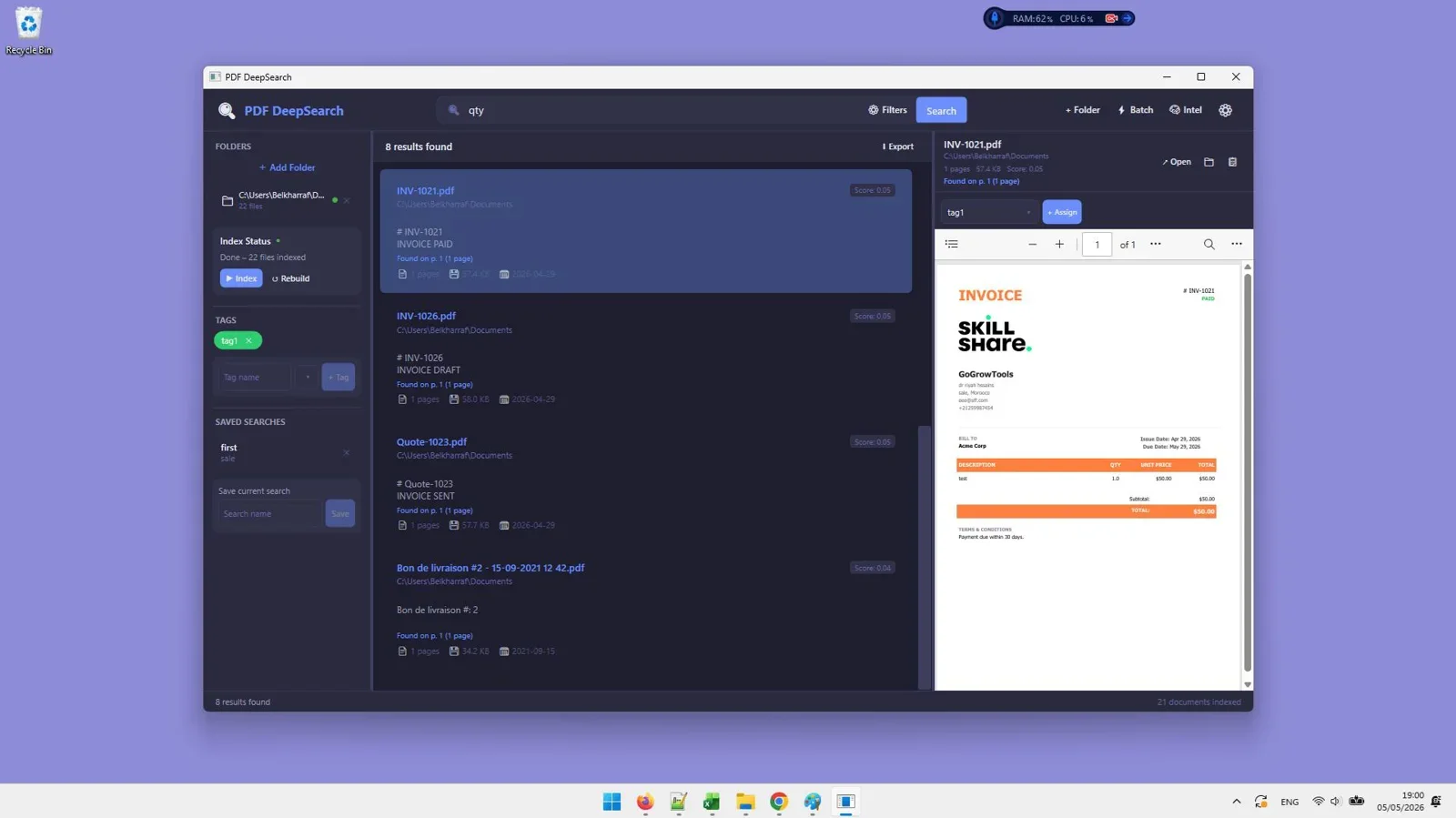
A purpose-built PDF search application indexes your files independently of Windows and returns results faster, more accurately, and across both digital and scanned documents. This is the recommended approach for anyone who works with PDFs regularly — researchers, legal professionals, marketers, and analysts included.
Key features to look for in a PDF search tool:
- Full-text indexing across an entire folder or drive
- OCR support for scanned and image-based PDFs
- Regex and Boolean search for advanced queries
- Offline operation so sensitive documents never leave your machine
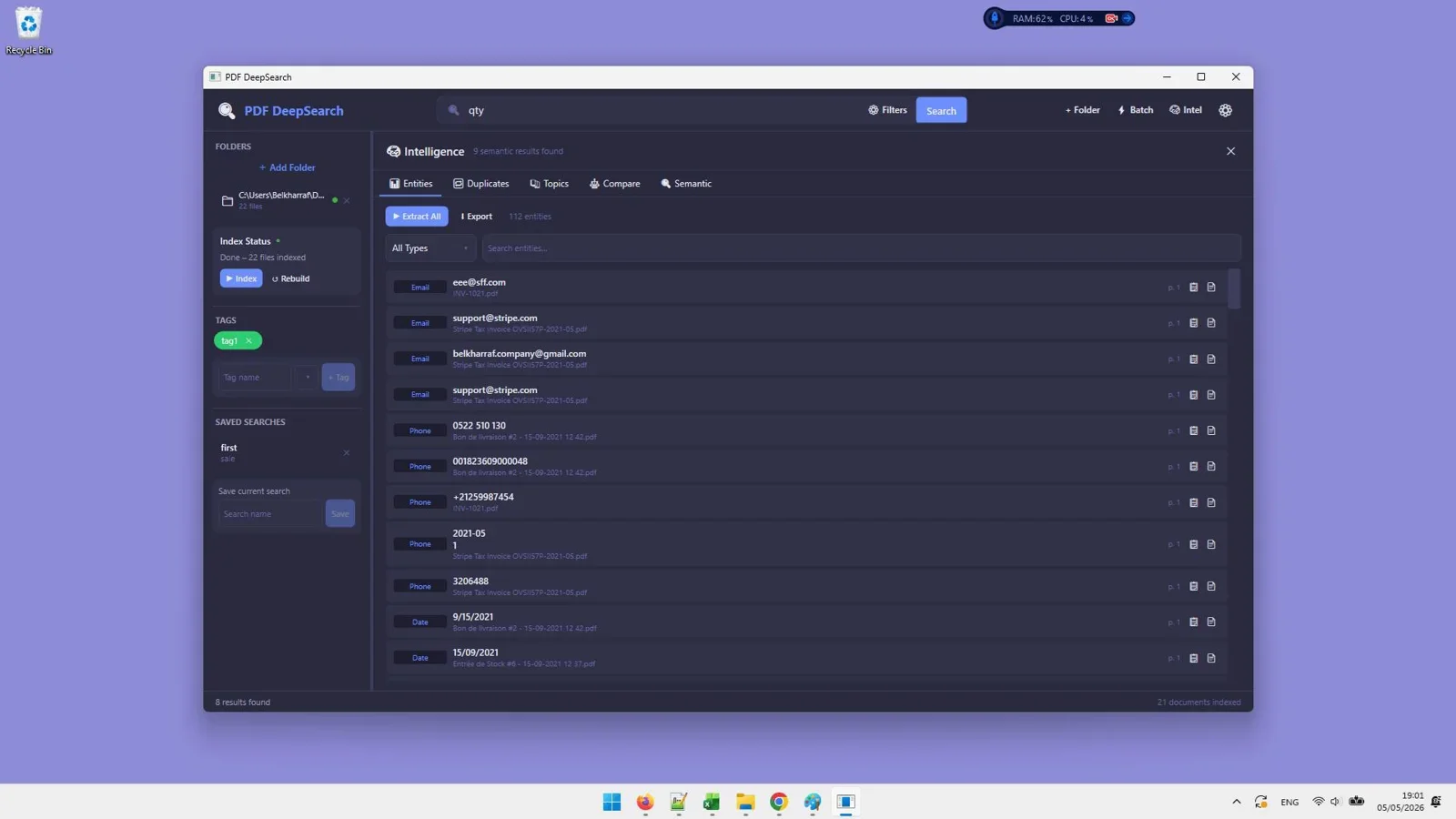
- Bulk data extraction to pull emails, phone numbers, or custom patterns

Search, extract, and compare hundreds of PDFs offline — no Adobe, no subscription.
Method 3: Search Scanned PDFs with OCR
Scanned PDFs are image files with no embedded text layer. To search them, you need Optical Character Recognition (OCR) — software that reads the image and converts it to indexable text. Without OCR, no search tool, including Adobe Acrobat, can find words inside a scanned document.
The process with a capable tool works like this:
- Point the software at a folder containing scanned PDFs.
- The tool runs OCR (using an engine such as Tesseract) on each document.
- The extracted text is indexed and becomes fully searchable alongside your regular PDFs.
- Search results show the exact page and context where the keyword appears.
This is especially valuable for legal teams processing court records, researchers working with archived papers, and businesses that have digitized old invoices or contracts.
How to Search Hundreds of PDFs in a Folder at Once
Whether your library has 50 files or 5,000, the steps are the same with a dedicated tool:
- Index your folder. Select the root folder containing all your PDFs. The tool recursively scans every subfolder and builds a search index. This takes a few minutes on first run, then updates automatically when files change.
- Enter your search query. Type a keyword, phrase, or regex pattern. Boolean operators (AND, OR, NOT) let you narrow results precisely.
- Review results in context. Results appear with the file name, page number, and a text snippet showing the keyword in context — no need to open each file manually.
- Open or extract. Click any result to jump directly to that page, or use bulk extraction to pull all matching data into a spreadsheet.
This workflow replaces hours of manual review with a process that takes under a minute, regardless of library size.
PDF DeepSearch: The Best Offline Tool for Searching Multiple PDFs on Windows
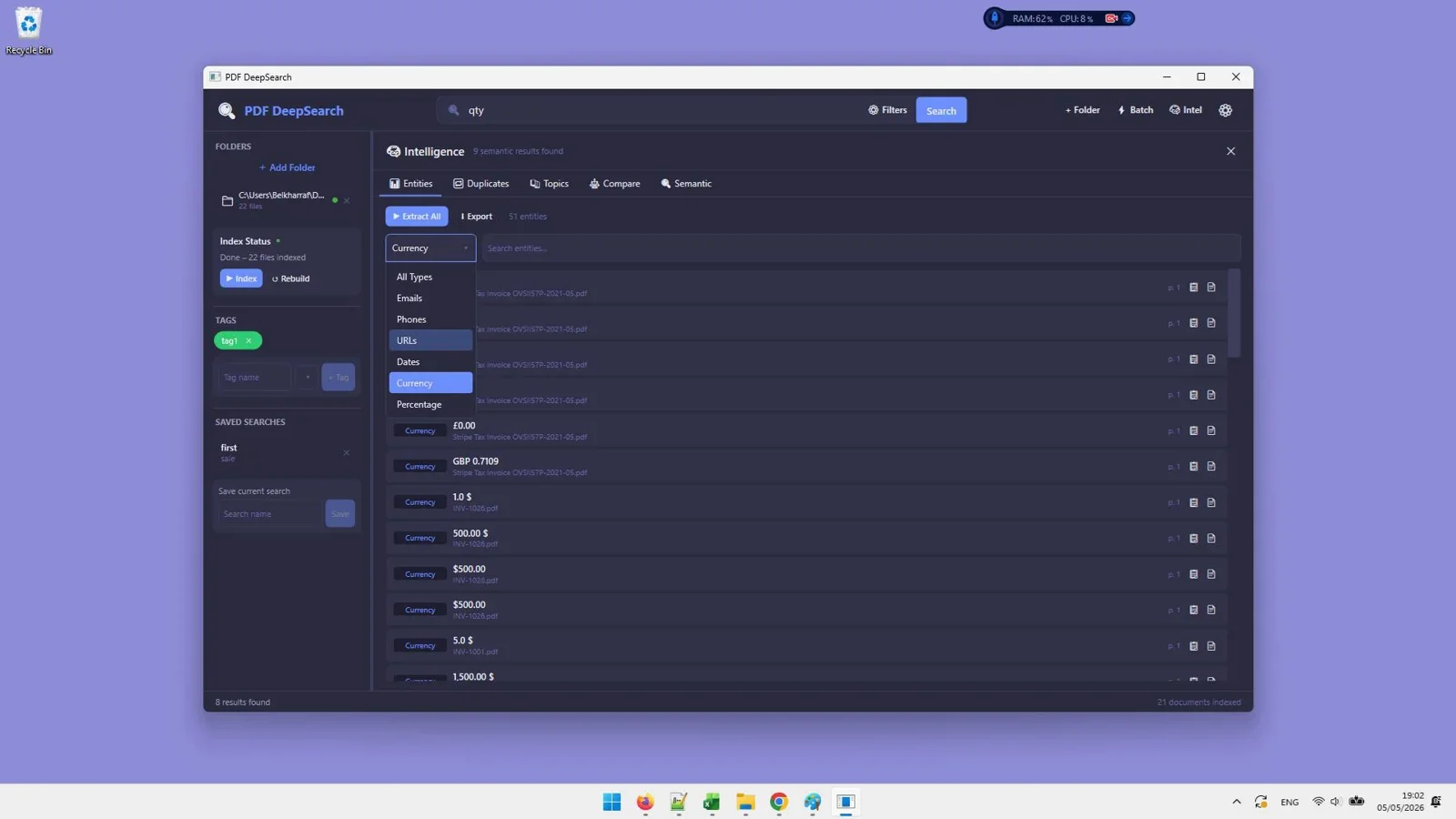
PDF DeepSearch is a Windows desktop application that combines full-text search (powered by Lucene.NET), OCR (Tesseract), and semantic AI search (ONNX) in a single offline tool. It finds text in both digital and scanned PDFs, detects duplicate documents, compares two PDFs for differences, and extracts structured data such as emails, phone numbers, and dates in bulk.
Because it runs entirely offline, it is suitable for sensitive document libraries — legal files, medical records, financial reports — where cloud-based tools are not appropriate.
Pros:
- Works 100% offline — no data leaves your machine
- Searches both text-based and scanned PDFs
- Semantic search understands meaning, not just exact matches
- Bulk data extraction to CSV or Excel
- PDF comparison and duplicate detection built in
- One-time payment of $27 — no subscription
Cons:
- Windows only (no Mac or Linux version)
- Initial indexing takes time on very large libraries
Best for: Researchers, legal teams, analysts, and anyone managing large PDF archives on Windows who needs fast, private, offline search.

Full-text, OCR, and AI search across your entire PDF library — offline, one-time price.
Final Verdict
Who should use PDF DeepSearch?
PDF DeepSearch is the right choice for Windows users who regularly work with large PDF libraries and need fast, accurate search without paying a monthly Adobe subscription. It is especially strong for legal professionals, academic researchers, and businesses handling sensitive documents that must stay offline. For casual users with a handful of PDFs, free Windows indexing may suffice — but anyone managing 50 or more documents will immediately feel the difference.
Overall Rating: 4.7 / 5
Frequently Asked Questions
Can I search multiple PDF files at once without Adobe Acrobat?
Yes. You can enable Windows content indexing with a free PDF IFilter, or use a dedicated tool like PDF DeepSearch that indexes and searches your entire PDF library offline without any Adobe product.
How do I search inside scanned PDFs on Windows?
Scanned PDFs require OCR to extract their text before they can be searched. Tools like PDF DeepSearch include a built-in OCR engine (Tesseract) that processes scanned files automatically and adds them to the searchable index.
Is there a free way to search all PDFs in a folder?
Windows content indexing is free and can search text-based PDFs after you install a PDF IFilter and rebuild the index. However, it does not support scanned PDFs and can be slow and incomplete for large libraries. A dedicated tool delivers more reliable results.
What is the best offline PDF search tool for Windows in 2026?
PDF DeepSearch ranks as the top offline option in 2026 for Windows users. It combines full-text search, OCR, and semantic AI search in a single desktop app, with no internet connection or subscription required.
Can PDF search tools extract data like emails and phone numbers?
Yes. PDF DeepSearch includes a bulk data extraction feature that pulls structured data — emails, phone numbers, dates, and custom regex patterns — from across your entire PDF library and exports the results to CSV or Excel.
Stop Hunting Through PDFs Manually
PDF DeepSearch finds any word, phrase, or data point across hundreds of files in seconds — offline, one-time price, no Adobe needed.
Get PDF DeepSearch →One-time payment of $27. Windows desktop app. No subscription, no internet required.



Comments (0)
Leave a Comment