
Extracting business leads from Google Maps can fill your pipeline with hundreds of qualified prospects in minutes — if you know how to do it without triggering blocks. This guide walks you through the entire process step by step, from setting up your queries to exporting a clean list ready for cold outreach.
In this article
- Why Google Maps is a Goldmine for B2B Leads
- Manual Extraction vs. Automation: What Actually Works
- How to Extract Leads from Google Maps Step by Step
- How to Avoid Getting Blocked While Scraping
- Exporting and Using Your Lead Data
- Frequently Asked Questions
Why Google Maps is a Goldmine for B2B Leads
Google Maps indexes over 200 million businesses worldwide. Every listing includes a business name, address, phone number, rating, category, and often a direct link to the business website — where emails are frequently listed. For agencies, freelancers, and sales teams, that is an enormous, constantly updated database of local business contacts that no purchased list can match in accuracy or freshness.
The problem is that accessing this data at scale is slow and painful when done by hand. Copying and pasting from Google Maps for even 50 businesses takes hours. For 500, it becomes a full-time job. That is where automated extraction tools come in.
Manual Extraction vs. Automation: What Actually Works
Before jumping into the how-to, it helps to understand why manual extraction fails at scale — and what to look for in a tool.
| Method | Speed | Email Capture | Block Risk | Cost |
|---|---|---|---|---|
| Manual copy-paste | Very slow | Manual only | None | Time only |
| Browser extensions | Moderate | Limited | Medium | Free to low |
| Cloud scrapers (Outscraper, Apify) | Fast | Sometimes | Low | Monthly fees |
| Desktop AI scraper (MappyLeads) | Fast | Yes, from websites | Low (proxy + anti-detect) | One-time $27 |
The key advantage of a dedicated Windows desktop tool is that it combines speed, email extraction from business websites, and built-in anti-detection — without a recurring subscription eating into your margins every month.

Extract emails, phones, addresses, and ratings from Google Maps and business websites — fully automated, one-time payment.
How to Extract Leads from Google Maps Step by Step
Here is exactly how to go from zero to a clean, outreach-ready lead list using an AI-powered Google Maps scraper like MappyLeads.
Step 1: Define Your Target Niche and Location
Start with a clear query: a business category and a city or region. Examples: "plumbers in Austin TX", "digital marketing agencies in London", or "dentists in Chicago". The more specific your niche, the higher the relevance of your leads. Broad queries like "restaurants in the US" will return thousands of results that are hard to work with.
Step 2: Load Your Queries in Batch
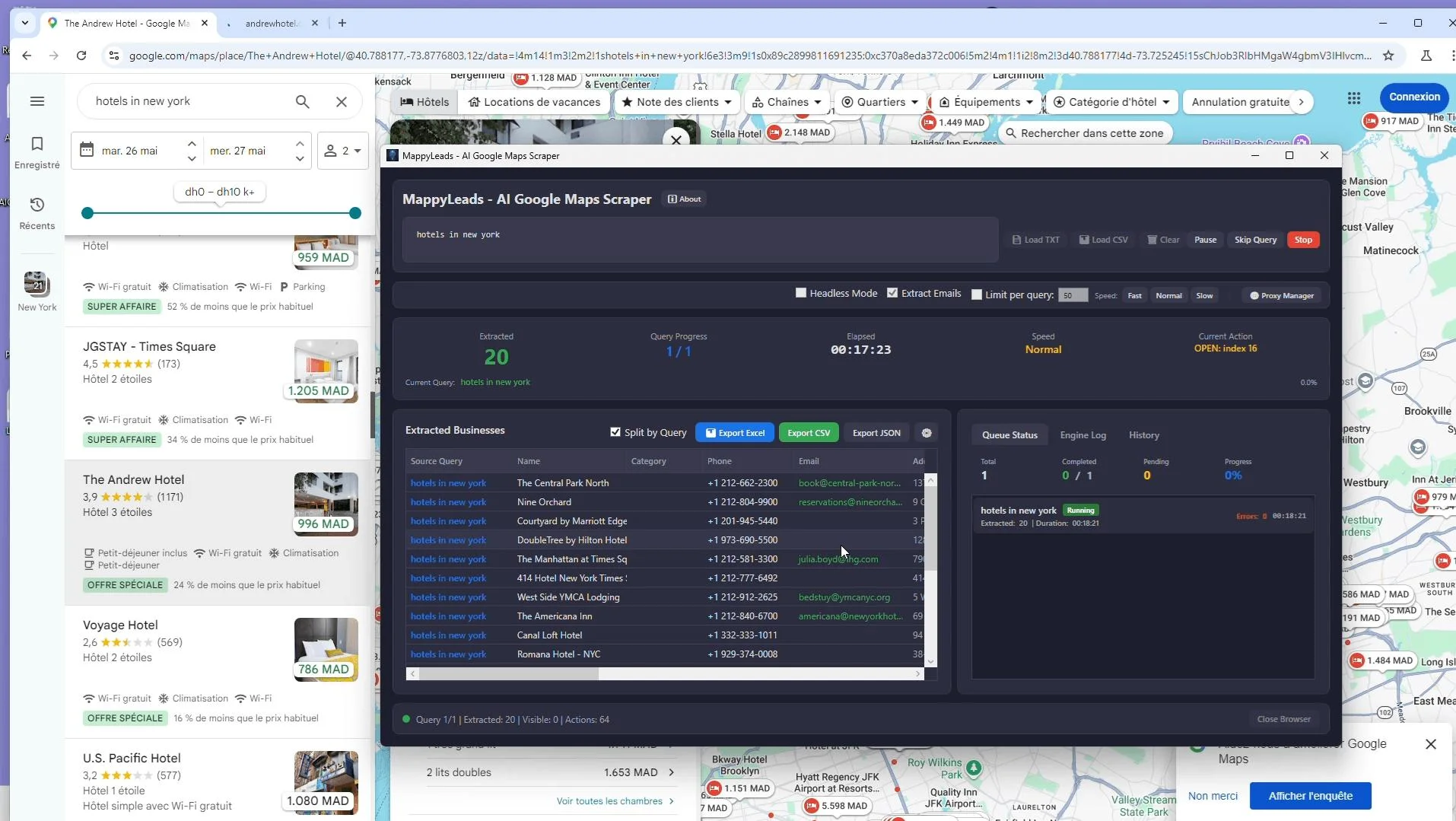
Rather than running one search at a time, load all your keyword-location combinations into a TXT or CSV file and import them in one shot. MappyLeads processes the entire queue automatically, so you can set it up and walk away while hundreds of leads are captured across multiple cities and niches simultaneously.
Step 3: Enable Email Extraction from Business Websites
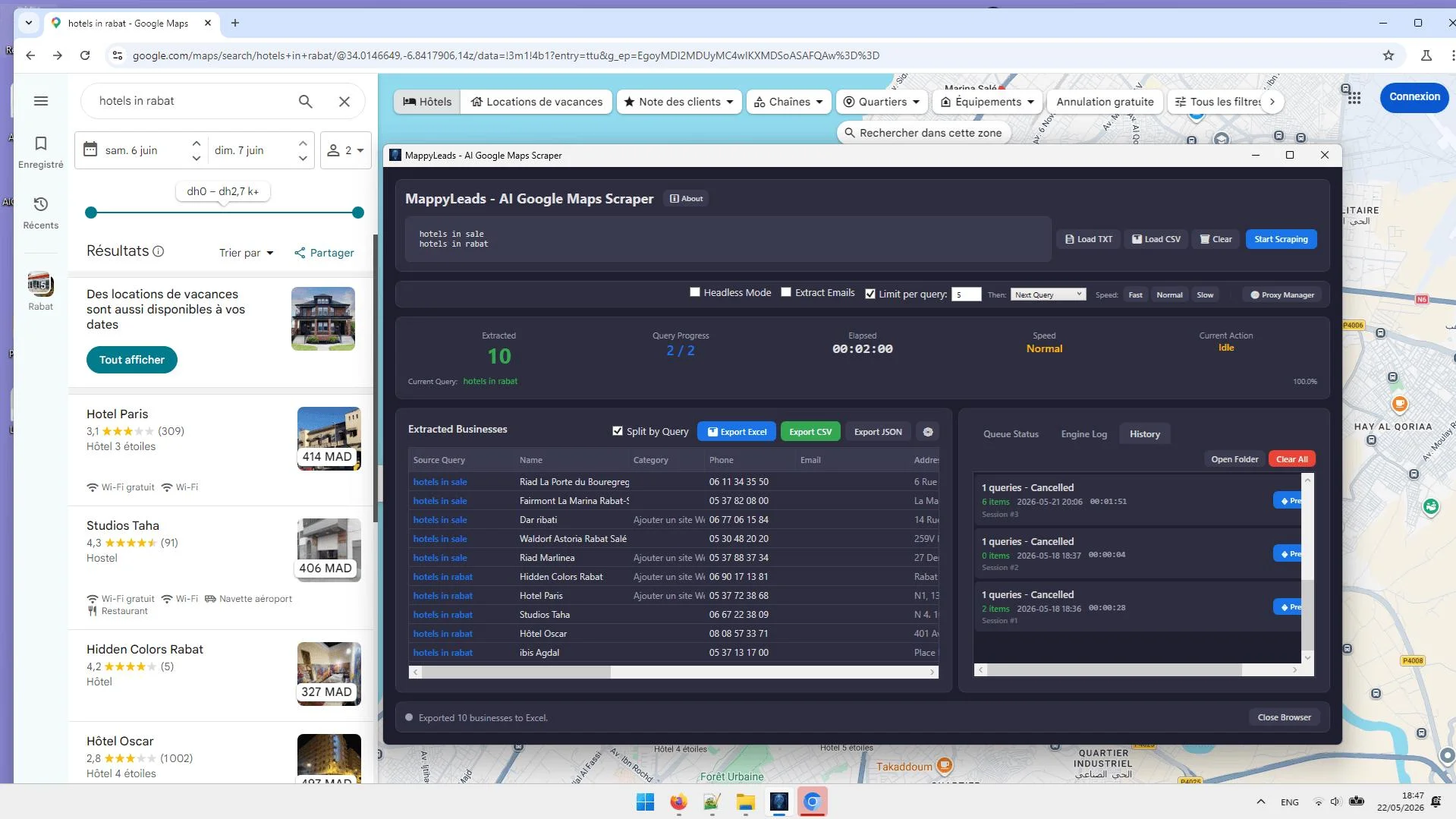
Google Maps listings rarely include a direct email address — but most businesses list one on their website. A good scraper visits each business website in the listing and pulls the email automatically. This is what separates a basic scraper from a true lead generation tool. With MappyLeads, this happens in the same run, so your final export includes both the Maps data and the contact email in one clean file.
Step 4: Configure Proxy Rotation
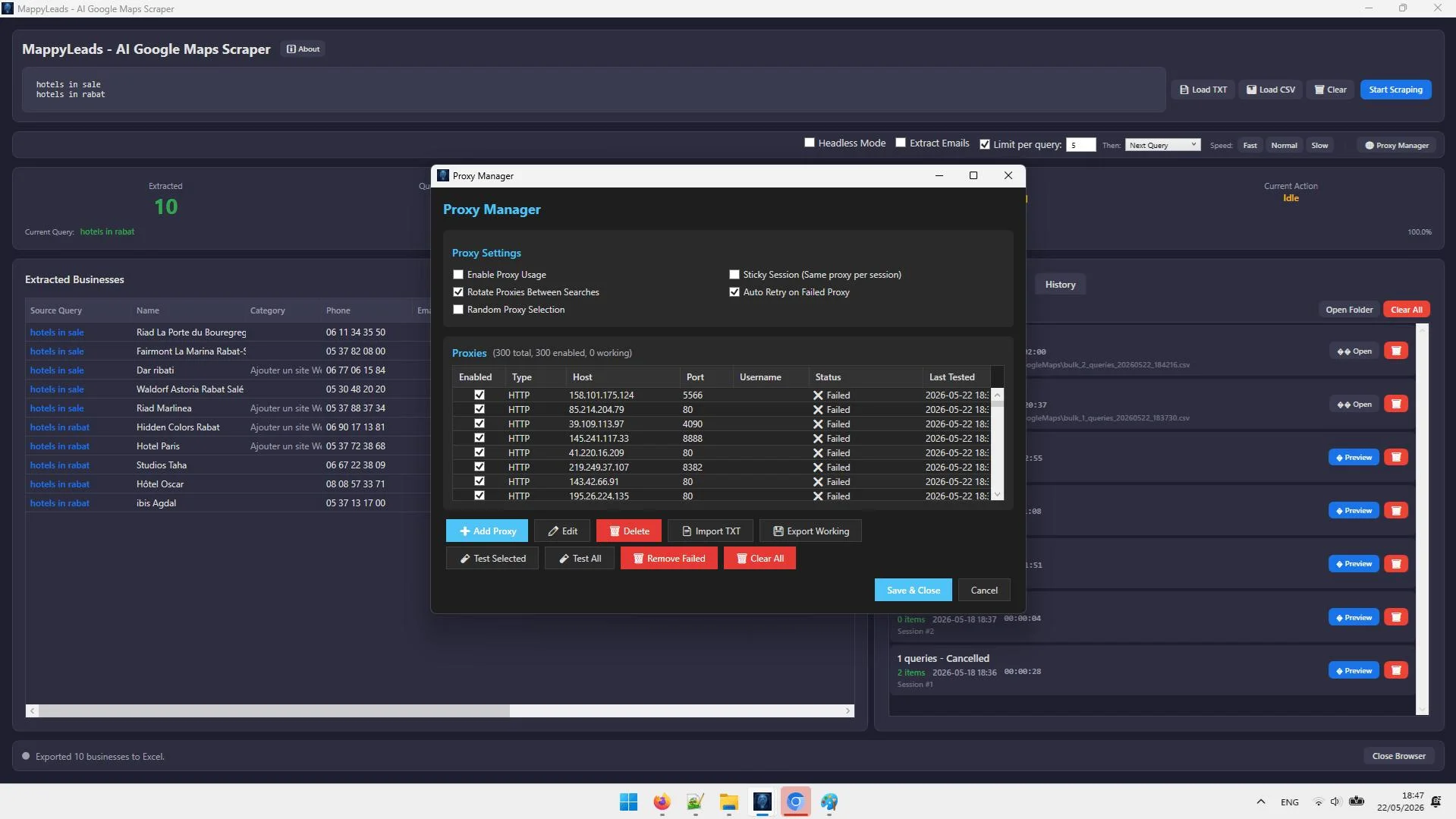
This step is critical if you are running large scrapes. Without proxy rotation, Google will detect repeated automated requests from the same IP and start returning CAPTCHAs or blocking results. Add your HTTP, HTTPS, or SOCKS5 proxies to the tool's proxy manager before starting. MappyLeads rotates them automatically across requests, keeping your session stable even at high volume.
Step 5: Monitor and Let It Run
Once your queries are loaded and proxies are set, start the run and monitor progress via the real-time queue dashboard. You can see which searches are complete, which are in progress, and your success rate per batch. If something stalls, the auto-retry engine handles it without you needing to restart the whole session. You can also pause and resume at any point — all progress is saved to a local SQLite database.
Step 6: Export Your Leads
When the run completes, export your results to CSV, JSON, or Excel with one click. The output includes business name, address, phone number, website, email, rating, coordinates, and category — structured and clean, ready to import directly into your CRM or cold email tool.
How to Avoid Getting Blocked While Scraping Google Maps
This is the question most people search for — and the reason so many DIY scrapers fail. Here are the key practices that keep your runs stable:
- Use rotating proxies. Never run high-volume scrapes from a single IP. Residential proxies are best; datacenter proxies work at lower volumes.
- Enable anti-detection browser automation. Tools that mimic real human behavior — scroll patterns, timing variation, user agent rotation — are far less likely to trigger Google's bot filters.
- Run headless mode. Headless browsing (no visible window) is faster and less resource-intensive, and it avoids some fingerprinting triggers tied to visible browser sessions.
- Batch intelligently. Spread large scrapes across time rather than hammering hundreds of queries in seconds. MappyLeads handles pacing automatically.
- Use auto-retry. Transient errors are normal. A scraper with built-in retry logic recovers from them without losing progress or triggering further detection.
"Great work and tools. Customer service was great!"
Exporting and Using Your Lead Data
A lead list is only as useful as what you do with it. Once you export from MappyLeads, here is how to put it to work immediately:
- Cold email campaigns: Import the CSV into tools like Instantly, Lemlist, or Smartlead. Map the email, name, and business fields and launch a sequence within minutes.
- CRM import: Most CRMs (HubSpot, Pipedrive, GoHighLevel) accept CSV uploads. Your structured export maps cleanly to standard contact fields.
- LinkedIn prospecting: Use business names and websites to find decision-makers on LinkedIn for multi-channel outreach.
- Agency service delivery: If you run an agency, sell Google Maps lead lists as a service to local business clients — MappyLeads includes commercial use rights and a reseller panel.
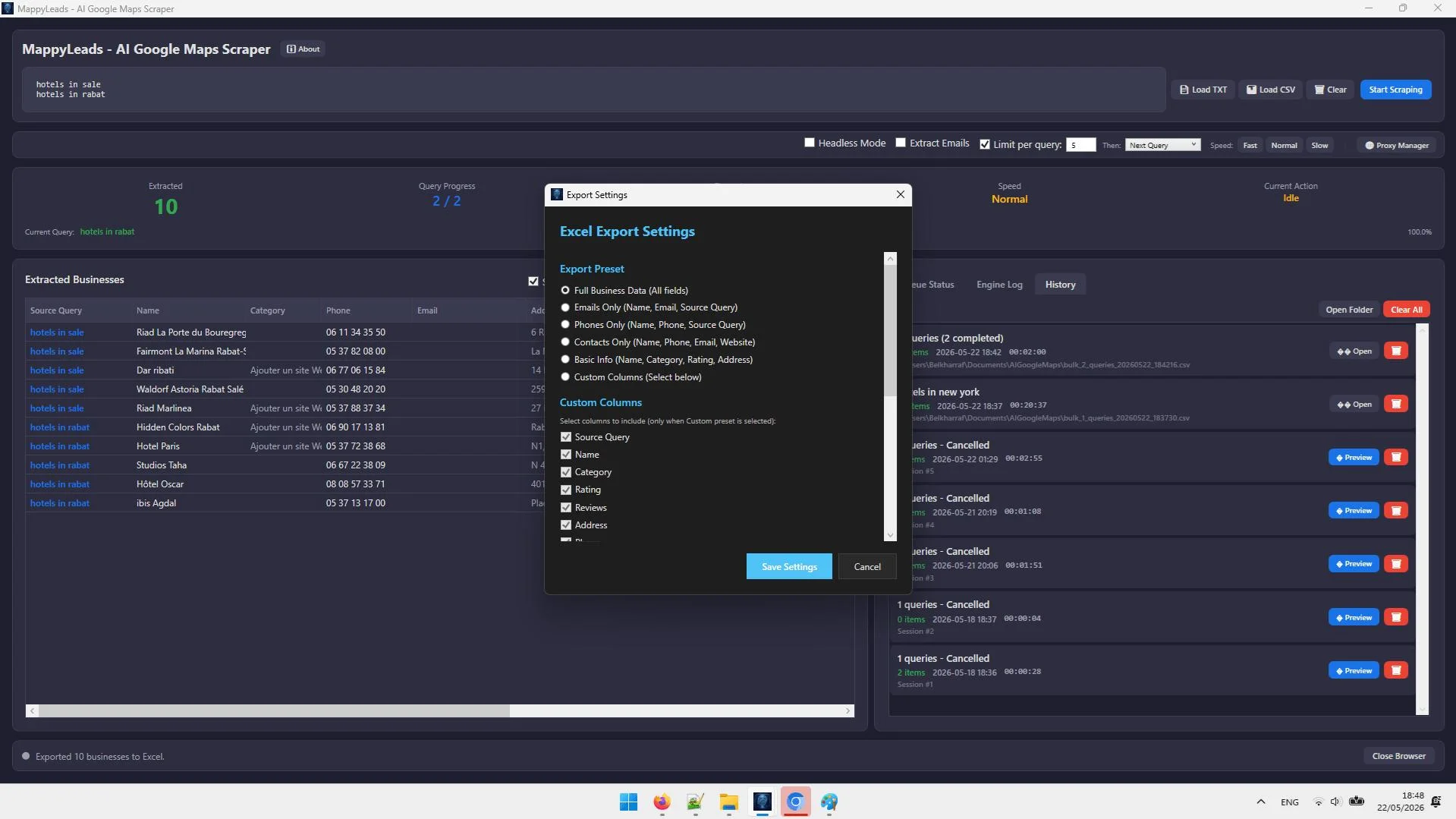

Batch scraping, email extraction, proxy rotation, and one-click export — all for a single $27 payment. No monthly fees.
Final Verdict
Who should use MappyLeads?
MappyLeads is the right choice for freelancers, agencies, and sales teams who need a reliable, high-volume Google Maps lead extractor without paying a monthly SaaS fee. If you are running cold outreach campaigns, selling lead generation as a service, or prospecting for local clients, the combination of batch scraping, automatic email extraction from business websites, proxy rotation, and clean export formats makes it one of the most practical tools available at this price point.
Overall Rating: 4.5 / 5
Frequently Asked Questions
Is scraping Google Maps legal?
Scraping publicly visible data from Google Maps is a legally debated area that varies by jurisdiction and use case. Google's Terms of Service restrict automated access, so it is important to use the tool responsibly, avoid overloading servers, and comply with applicable data protection laws (such as GDPR or CAN-SPAM) when using extracted contacts for outreach. Always consult a legal professional if you are unsure about your specific use case.
How do I extract emails from Google Maps if they are not listed?
Most Google Maps listings do not show an email address directly. The way to get them is to visit each business's linked website and extract the email from the contact page. MappyLeads does this automatically as part of the same scraping run — no extra steps required.
How many leads can I extract in one run?
There is no hard cap built into MappyLeads. The practical limit depends on your proxy quality, internet speed, and the number of queries you load. Users routinely extract hundreds to thousands of leads per session by loading batch query files and letting the tool run in the background.
Do I need proxies to use MappyLeads?
Proxies are not required for small test runs, but they are strongly recommended for any large-scale scraping. Without proxy rotation, Google will eventually detect repeated automated requests and serve CAPTCHAs or block results. MappyLeads supports HTTP, HTTPS, and SOCKS5 proxies with automatic rotation.
Does MappyLeads work on Mac or Linux?
MappyLeads is currently a Windows-only desktop application, compatible with Windows 10 and Windows 11. There is no Mac or Linux version at this time.
Can I use the leads for commercial projects or resell them?
Yes. MappyLeads includes commercial use rights, meaning you can use the extracted data for client projects or sell lead lists as a service. It also comes with reseller rights and a reseller panel if you want to resell the software itself.
Start Filling Your Pipeline Today
Extract targeted business leads from Google Maps in minutes — emails, phones, addresses, and more. One-time payment, no subscriptions.
Get MappyLeads for $27 →One-time payment. Works on Windows 10/11. Instant download access.




Comments (0)
Leave a Comment