
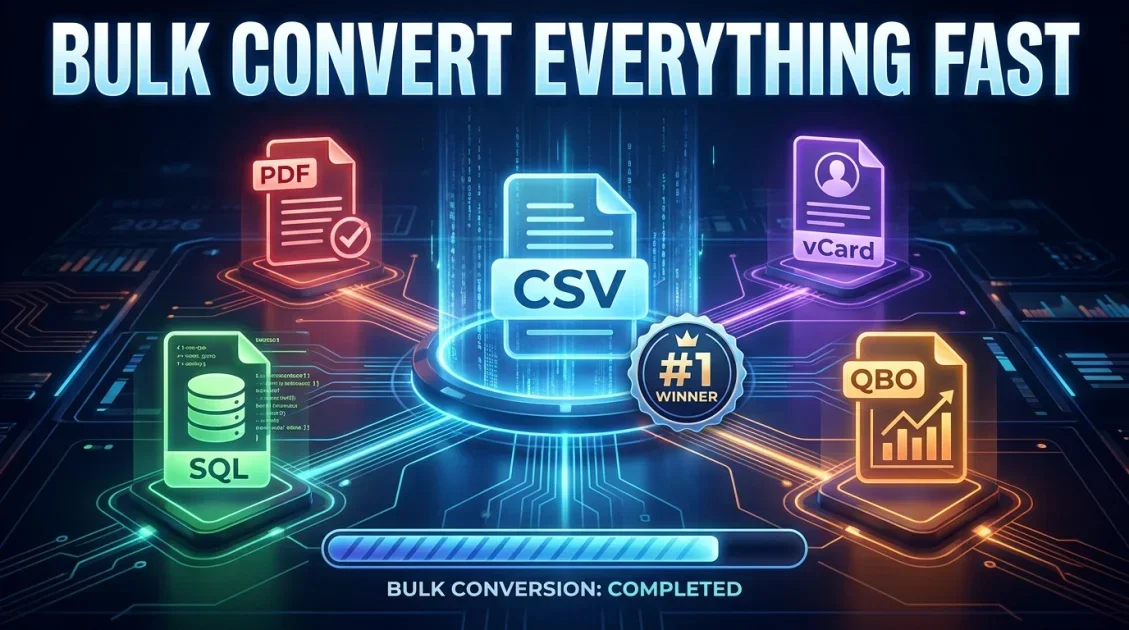
Finding a reliable csv to pdf converter or multi-format data transformation tool in 2026 requires balancing processing speed, formatting accuracy, and strict data privacy. Converting comma-separated value (CSV) files into structured PDF reports, database SQL queries, vCard contacts, or accounting QBO formats can be cumbersome when relying on rate-limited online converters. Dedicated desktop conversion software like XtraCSV solves these challenges by transforming single files or entire nested directories into over 30 distinct data formats locally on your Windows PC with zero cloud uploads or file size caps.
In this article
- Why Local CSV Conversion Matters in 2026
- How to Convert CSV to PDF, SQL, vCard, and Excel
- Key Features of XtraCSV for Bulk Data Transformation
- CSV Converter Format Matrix & Capabilities
- Verdict: Who Needs an Advanced CSV Converter?
- Frequently Asked Questions
Why Is Local CSV Conversion Essential for Modern Workflows in 2026?
Data specialists, financial analysts, software developers, and system administrators handle massive volumes of tabular data daily. While web-based conversion tools are common, they introduce significant operational risks and technical bottlenecks:
- Data Privacy & Compliance: Uploading sensitive customer records, bank statements, or proprietary databases to web servers can violate GDPR, HIPAA, and internal security policies.
- File Size & Rate Restrictions: Web utilities frequently throttle batch processing, enforce strict 5MB or 10MB file limits, or require queuing files individually.
- Schema & Encoding Errors: Online tools often strip specialized character encodings (such as UTF-8 with BOM), corrupt multi-line field values, or misinterpret custom delimiters.
Operating a local desktop conversion utility ensures that sensitive financial records, database dumps, and contact directories remain entirely on your local machine while processing thousands of files simultaneously.
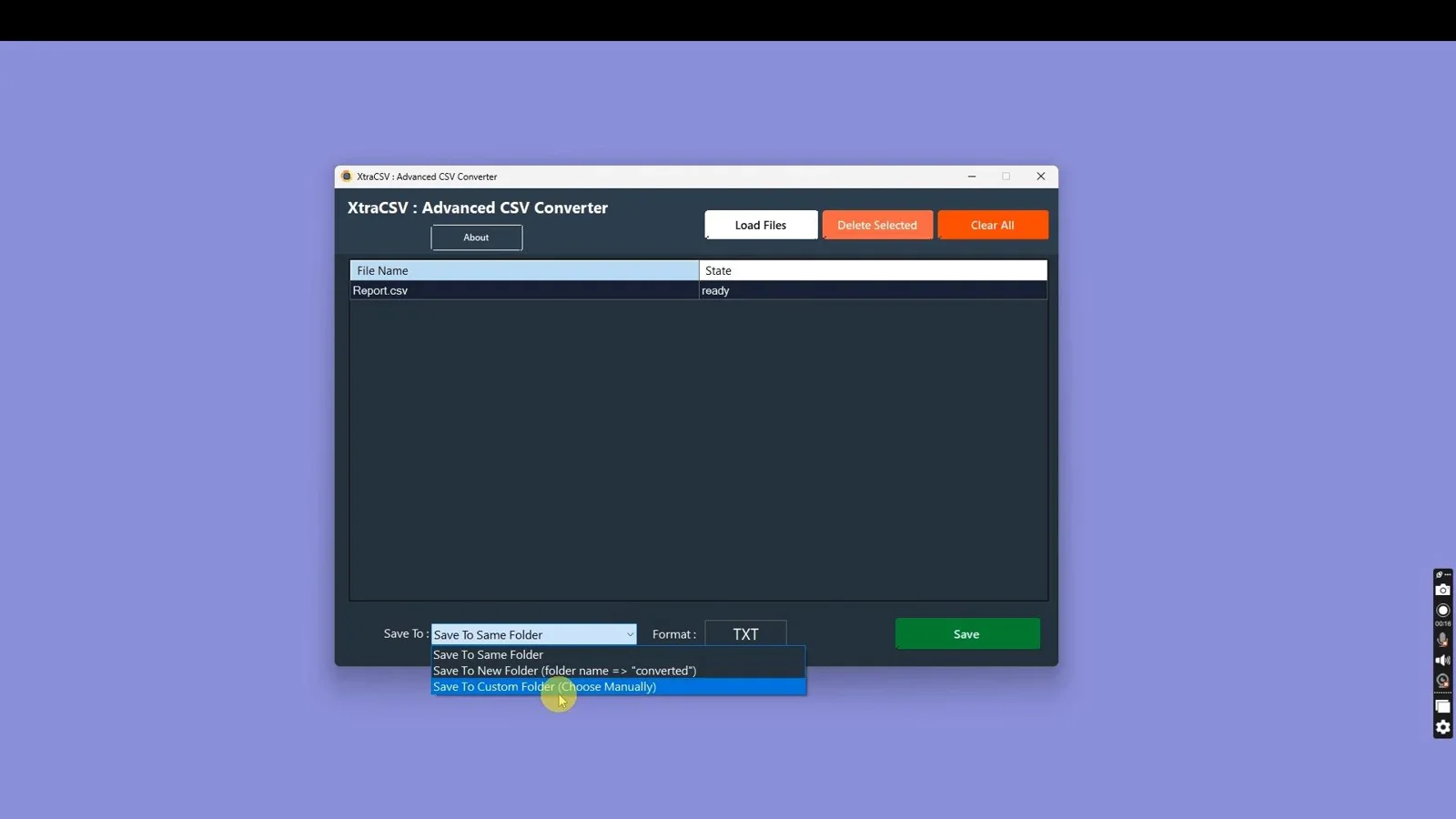
Bulk convert single CSV files or entire directory trees into 30+ data formats in seconds with 100% offline privacy.
How to Convert CSV to PDF, SQL, vCard, and Excel Step by Step
Different workflows demand specific output structures. Here is how professional teams manage key conversion tasks across popular data targets:
1. How to Use a CSV to PDF Converter for Clean Document Reporting
Converting tabular CSV data into PDF documents creates clean, tamper-evident reports for clients, stakeholders, or auditing teams. When performing a csv to pdf converter transformation, specialized software formats table headers, adjusts column widths, and prevents horizontal clipping across page breaks. For teams working with document management workflows, pairing local CSV processing with utilities like PDF searching tools ensures complete data accessibility across archival records.
2. Converting CSV to SQL Queries for Database Ingestion
Developers frequently need to convert csv to sql query statements for MySQL, PostgreSQL, or SQLite database migrations. A proper converter parses column headers into SQL table definitions and creates formatted INSERT INTO statements, escaping special characters to prevent syntax crashes during database execution.
3. Converting CSV to vCard Contacts for Mobile Import
Marketing and sales teams often receive contact lists in spreadsheet form. Using a csv vcard converter maps fields such as Name, Email, Phone Number, and Organization into standard .vcf files, allowing seamless contact syncing to iOS, Android, or Outlook address books.
4. Financial & Accounting Transformations (Bank Statements, OFX, and QBO)
Bookkeepers working with accounting software like QuickBooks frequently need to convert csv to qbo format or process raw bank statement to csv converter exports. Converting financial transaction logs into structured QBO or OFX formats ensures seamless reconciliation without manual data entry.
Key Features of XtraCSV for Bulk Data Transformation
When selecting dedicated data conversion software, performance and versatility are paramount. XtraCSV stands out for several core capabilities:
- Batch Directory Processing: Process hundreds of files in nested subfolders simultaneously with automated output folder structuring.
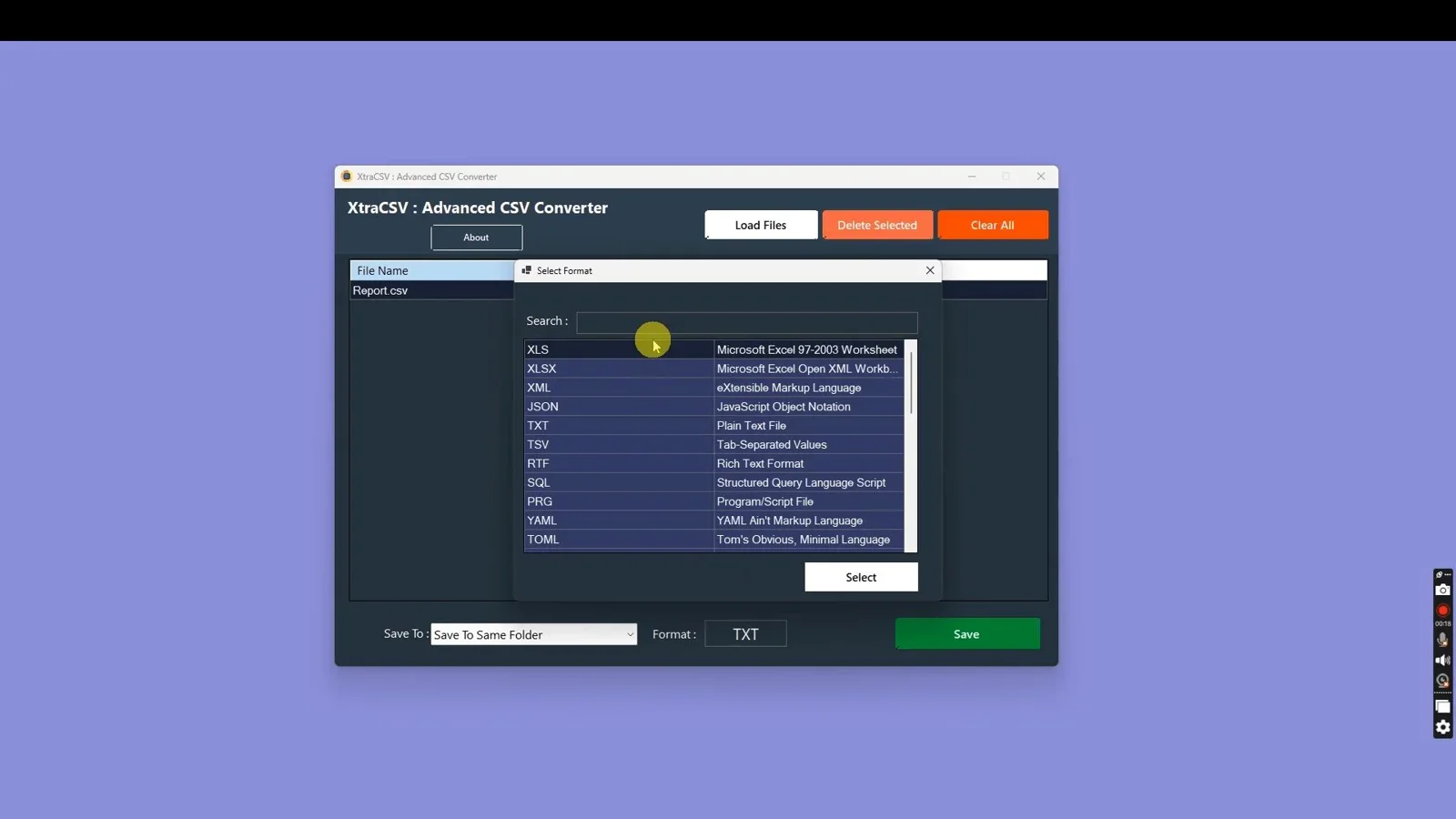
- 30+ Supported Export Formats: Seamlessly transform data between CSV, PDF, XLS, XLSX, JSON, XML, SQL, vCard (VCF), QBO, OFX, HTML, and Markdown.
- Custom Delimiter & Encoding Parsing: Handles comma, tab, semicolon, pipe, and custom character separators alongside UTF-8, ANSI, and Unicode standards.
- Zero Cloud Dependencies: Runs 100% locally on Windows desktop systems, protecting confidential business records from third-party server exposure.
For small businesses and growing operations looking to build efficient workflows, exploring our comprehensive guide on the best tools for small business highlights how offline utilities minimize monthly overhead while maximizing data security.
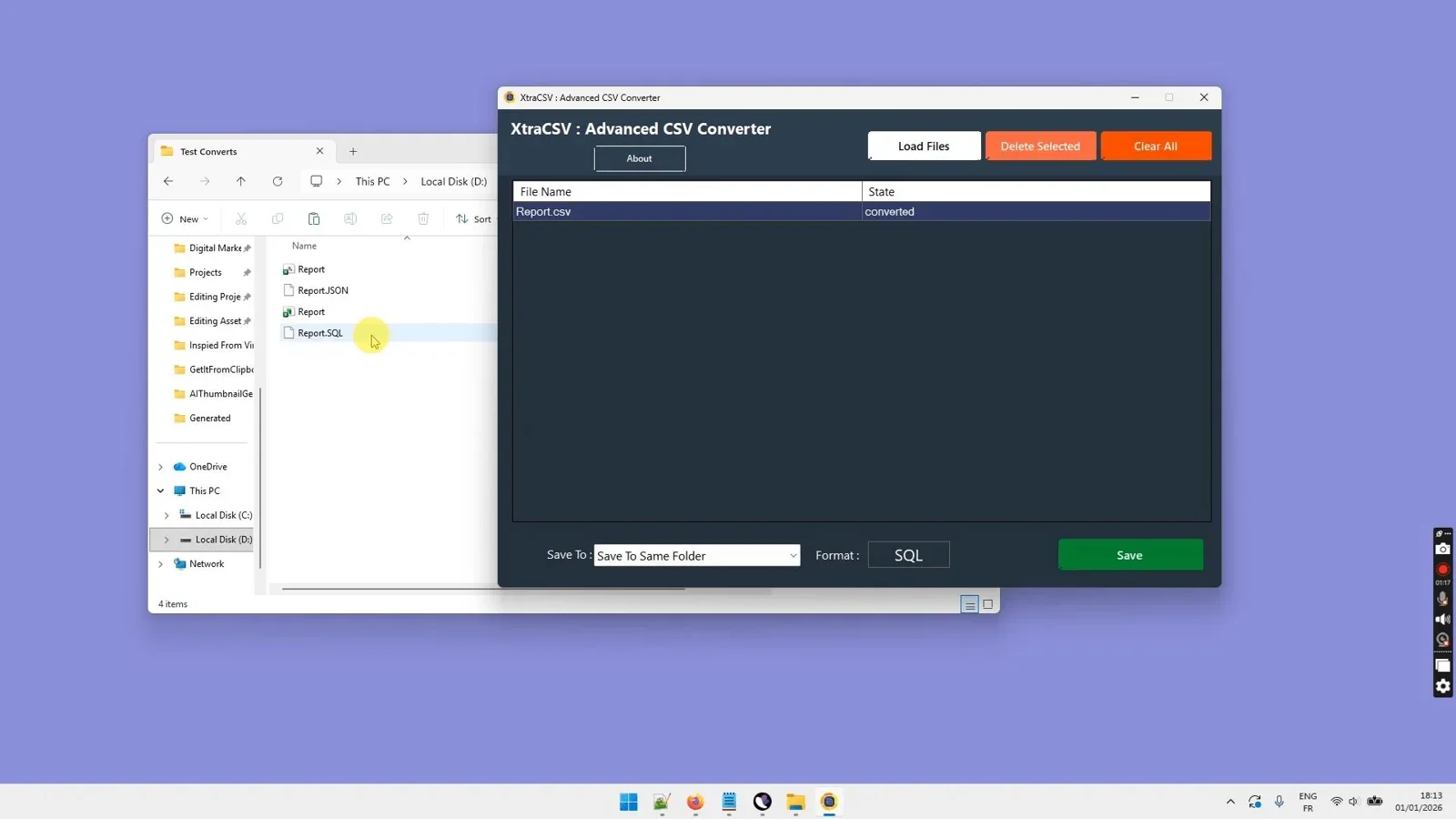
Accelerate data migration, database setup, and report generation with powerful offline batch processing.
CSV Converter Format Matrix & Capabilities
Understanding which target format suits your operational pipeline ensures smooth software integration. Standard technical specifications defined by official standards bodies like the W3C CSV Web Working Group highlight the importance of structured tabular metadata. The comparison matrix below outlines common conversion paths supported by desktop converters:
| Conversion Target | Primary Use Case | Key Benefit | Batch Support |
|---|---|---|---|
| CSV to PDF | Document reporting & client archives | Clean auto-formatted table layouts | Yes (Unlimited) |
| CSV to SQL | Database insertion & schema creation | Auto-escaped strings & insert queries | Yes (Unlimited) |
| CSV to vCard (VCF) | Mobile contact list synchronization | Automatic field mapping for phone/email | Yes (Unlimited) |
| CSV to QBO / OFX | QuickBooks & bank statement import | Standardized financial transaction headers | Yes (Unlimited) |
| JSON / XML to CSV | API payload parsing to spreadsheets | Flattens nested hierarchical keys | Yes (Unlimited) |
Verdict: Who Needs an Advanced CSV Converter?
Final Verdict
Who should use this tool?
XtraCSV is ideal for database managers, accountants, marketers, developers, and administrative professionals who regularly process tabular data and need fast, bulk conversion across 30+ formats without exposing confidential records to third-party web servers.
Overall Rating: 4.9 / 5
Frequently Asked Questions
How do I convert a CSV file to a PDF on Windows?
To convert a CSV file to PDF, open XtraCSV on your PC, select your source CSV file or input folder, choose PDF as your output format, customize your table layout settings if desired, and click Convert. The software formats headers and page breaks automatically.
Can I convert CSV files to SQL insert queries for database import?
Yes. XtraCSV parses CSV headers into structured SQL column names and generates executable INSERT INTO SQL statements compatible with MySQL, PostgreSQL, and SQLite databases.
How do I import a CSV contact list into my smartphone address book?
Use the vCard conversion feature in XtraCSV to convert your CSV spreadsheet into a standard .vcf file. You can then import the resulting vCard file directly into iOS Contacts, Android Google Contacts, or Microsoft Outlook.
Is it safe to convert bank statements and financial CSV files online?
Converting sensitive financial files on public web servers exposes financial data to potential security breaches. Using a local offline application like XtraCSV ensures that financial transactions and account statements never leave your computer.
Does XtraCSV support bulk folder conversion?
Yes. XtraCSV processes entire folder trees in batch mode, allowing you to transform thousands of files across nested subdirectories in a single operation.
Streamline Your Data Conversions Today
Convert single files or entire folders into 30+ formats with complete local privacy and zero recurring monthly fees.
Get XtraCSV →Windows Desktop Utility • One-Time Payment




Comments (0)
Leave a Comment