
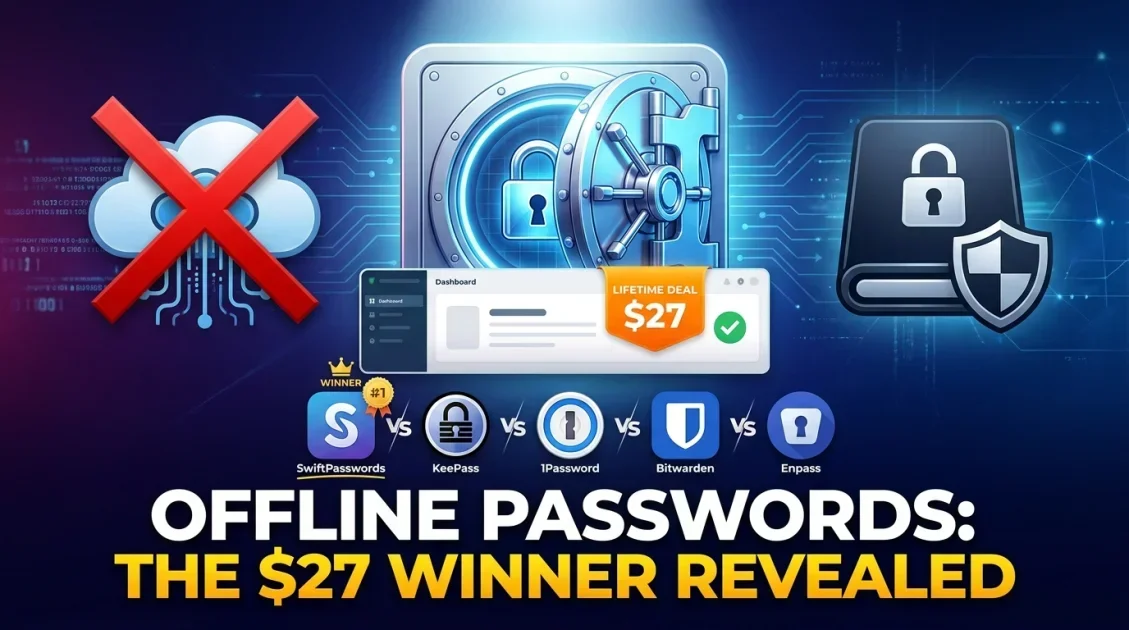
Cloud password managers are convenient — until they're not. LastPass suffered a major breach that exposed encrypted user vaults. Norton LifeLock had customer accounts compromised. Even Bitwarden, widely trusted, is a cloud-hosted service where your encrypted data lives on someone else's servers. If you've ever felt uneasy about that arrangement, you're not wrong. In 2026, the case for keeping your passwords entirely offline — on your own machine, under your own control — has never been stronger. In this post, we compare the best offline password managers available right now, including one that combines AES-256 encryption, a self-destruct mode, and a one-time $27 lifetime price.
In this article
- Why offline password managers are safer
- What to look for in an offline password manager
- Best offline password managers in 2026
- Side-by-side comparison
- Which one should you use?
- FAQ
Why offline password managers are safer
The core promise of any cloud password manager is convenience: your passwords sync across every device automatically. The tradeoff is that your encrypted vault lives on a remote server — and remote servers get breached. When LastPass was hacked, millions of encrypted vaults were copied by attackers. Even if the encryption holds, that's a ticking clock problem: as computing power grows, today's "secure" encryption becomes tomorrow's cracked vault.
An offline password manager eliminates this attack surface entirely. Your vault never leaves your machine. There's no server to breach, no sync to intercept, no cloud outage to lock you out. The only way someone gets your passwords is if they have physical access to your device and your master password — a scenario you can actually control.
For freelancers, small businesses, security-conscious individuals, and anyone who handles sensitive client credentials, the offline approach isn't paranoid — it's just sensible.
What to look for in an offline password manager
- Military-grade encryption — AES-256 is the standard; anything less is a red flag
- No cloud sync or telemetry — the vault should stay local, always
- Master password protection — ideally with brute-force protection or self-destruct after failed attempts
- Clipboard security — auto-clearing copied passwords prevents shoulder-surfing and clipboard hijacking
- Password generator — so you're not reusing weak passwords across sites
- Import/export — you need to be able to migrate from your current manager
- One-time pricing — subscriptions on security tools are an ongoing commitment; a lifetime license is preferable
Best offline password managers in 2026
1. SwiftPasswords — Best for Windows users who want full local control
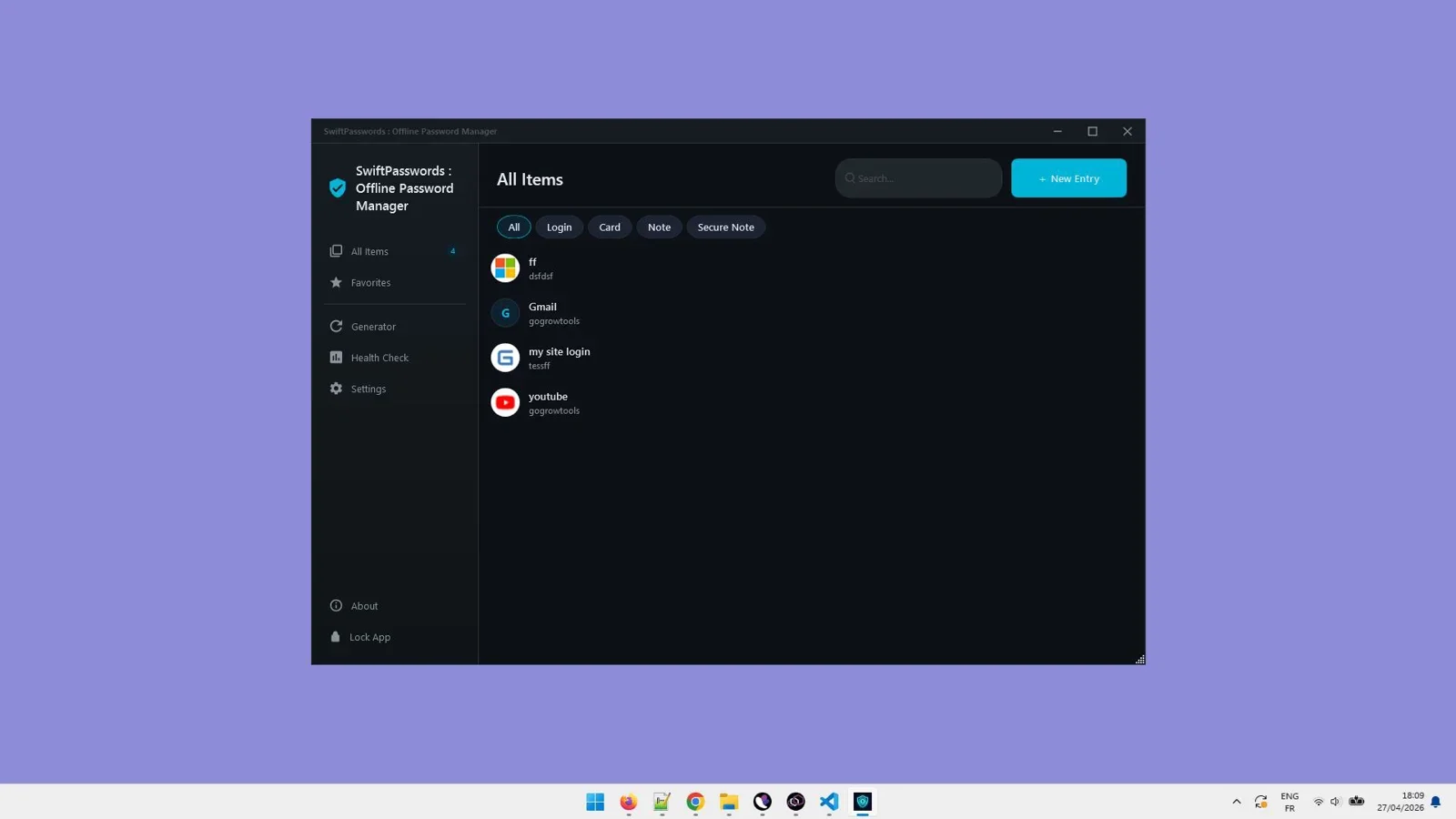
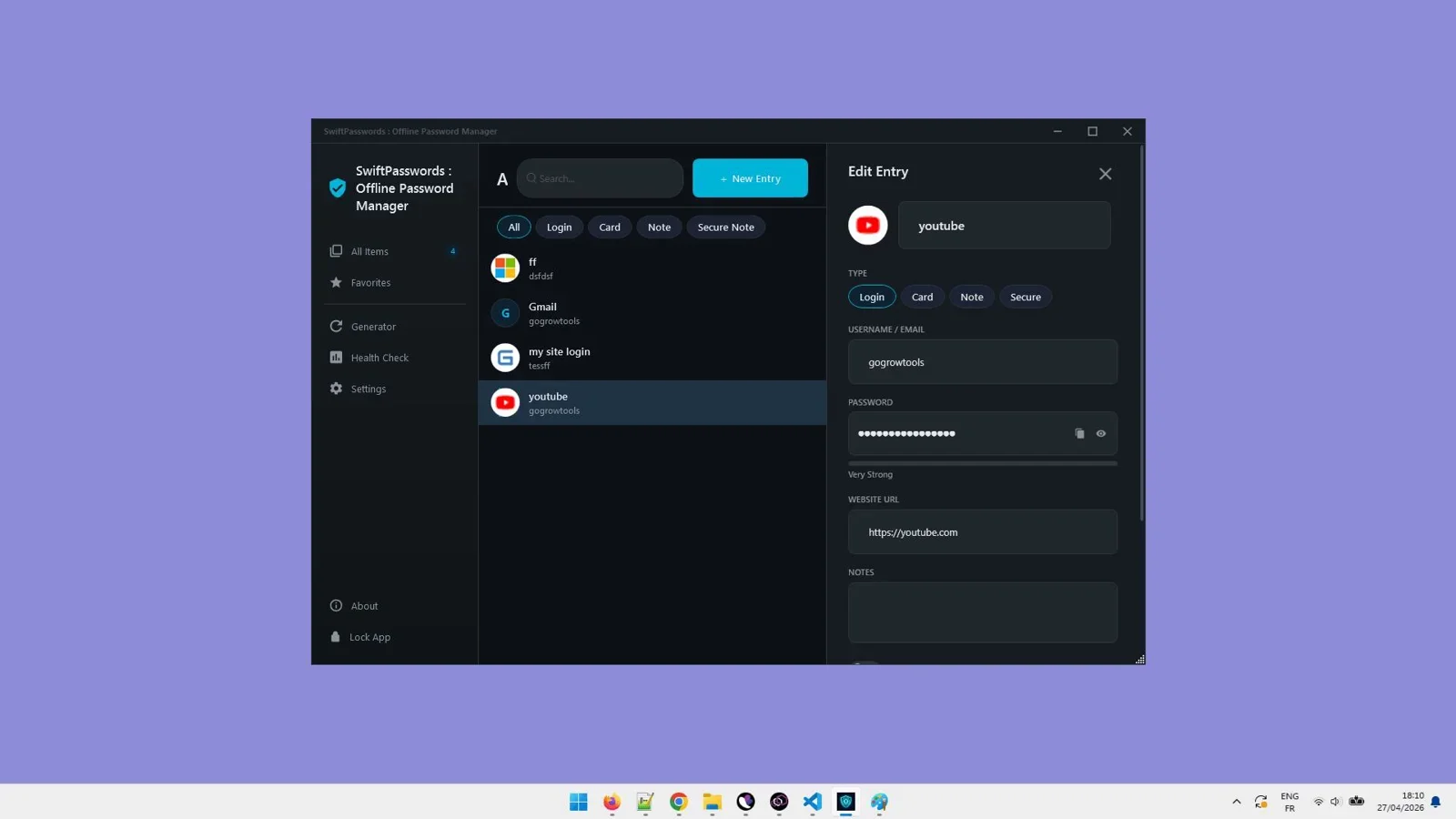
SwiftPasswords is a Windows desktop password manager built from the ground up for privacy. Every credential is stored locally in an AES-256 encrypted vault — nothing is ever sent to a server, synced to a cloud account, or accessible remotely. It's a tool designed for people who want to own their security rather than delegate it.
Beyond the basics, SwiftPasswords packs in features that most cloud managers charge premium tiers for: a self-destruct mode that wipes the vault after a set number of failed login attempts, clipboard auto-obfuscation to prevent password theft via clipboard sniffers, screenshot shielding to block screen capture tools from reading your vault, global hotkeys for fast access, fuzzy search across all entries, a built-in password generator, and a vault activity timeline so you can audit exactly what's been accessed and when. At $27 as a lifetime deal, it's priced lower than a single month of most competing premium plans.
AES-256 encrypted, 100% offline, self-destruct mode. One-time $27 payment, no subscription, no cloud.
2. KeePass — Best free open-source option
KeePass is the gold standard for free offline password management. It's open-source, audited by the security community, and stores everything in a local encrypted database file. The interface is dated and setup requires some technical comfort — you'll need to manage your own database file, find your own plugins for browser integration, and figure out sync manually if you use multiple devices. But for technically confident users who want a free, proven solution, KeePass is hard to argue with.
3. 1Password (local vault mode) — Best for Mac/Windows power users
1Password used to offer a local vault option that stored your data on-device rather than in the cloud. That option has been deprecated — all new accounts now sync through 1Password's servers. It's still an excellent password manager with polished apps across every platform, but it's no longer truly offline. Plans start at $2.99/month billed annually. If cloud sync is a dealbreaker, 1Password is no longer the right choice despite its reputation.
4. Bitwarden (self-hosted) — Best for technical teams who want cloud-style UX offline
Bitwarden is open-source and can be self-hosted on your own server, which keeps your vault off Bitwarden's infrastructure. This is a solid option for teams or technically advanced users who want browser extensions, mobile apps, and multi-device sync — all without trusting a third-party cloud. The tradeoff is complexity: you need to set up and maintain a server, handle backups, and manage updates yourself. The free tier of cloud-hosted Bitwarden is popular, but self-hosting removes the offline-first benefit for non-technical users.
5. Enpass — Best for cross-platform offline use with optional sync
Enpass is a commercial offline-first password manager that stores your vault locally by default and lets you choose your own sync method — iCloud, Google Drive, Dropbox, or your own WebDAV server. It has polished apps for Windows, Mac, iOS, and Android. The desktop app is free for up to 25 items; beyond that it costs $1.99/month or a one-time $79.99 desktop license. It's a strong cross-platform option if you need iOS or Android support, though the one-time pricing is significantly higher than SwiftPasswords.
Side-by-side comparison
| Tool | 100% offline | Pricing | Platform | AES-256 | Self-destruct | Easy setup |
|---|---|---|---|---|---|---|
| SwiftPasswords | ✅ Yes | $27 one-time | Windows | ✅ Yes | ✅ Yes | ✅ Yes |
| KeePass | ✅ Yes | Free | Windows, Mac, Linux | ✅ Yes | ⚠️ Plugin needed | ❌ Technical |
| 1Password | ❌ Cloud only | $2.99/month | All platforms | ✅ Yes | ❌ No | ✅ Yes |
| Bitwarden (self-hosted) | ✅ If self-hosted | Free (server required) | All platforms | ✅ Yes | ❌ No | ❌ Complex |
| Enpass | ✅ Yes (local) | $79.99 one-time | All platforms | ✅ Yes | ❌ No | ✅ Yes |
Which one should you use?
The right tool depends on what matters most to you.
If you're a Windows user who wants the simplest, most secure offline password manager at the lowest price, SwiftPasswords wins outright. It's the only option in this list that combines true offline storage, AES-256 encryption, self-destruct mode, clipboard protection, screenshot shielding, and a one-time payment — all in a tool that takes minutes to set up. At $27 it's also the most affordable paid option by a wide margin.
If budget is the only factor and you're technically comfortable, KeePass is free and battle-tested — but be prepared to spend time on configuration, plugin management, and browser integration that SwiftPasswords handles out of the box.
If you need cross-platform support including iOS and Android, Enpass is the strongest offline-first option, though it costs nearly three times as much for the one-time desktop license and doesn't include self-destruct or clipboard obfuscation.
If you're already in the 1Password or cloud Bitwarden ecosystem and happy with it, there's no urgent reason to switch — but understand that your vault is sitting on a third-party server, and plan accordingly.
The only offline password manager with self-destruct mode, clipboard protection, and AES-256 — for $27 one-time.
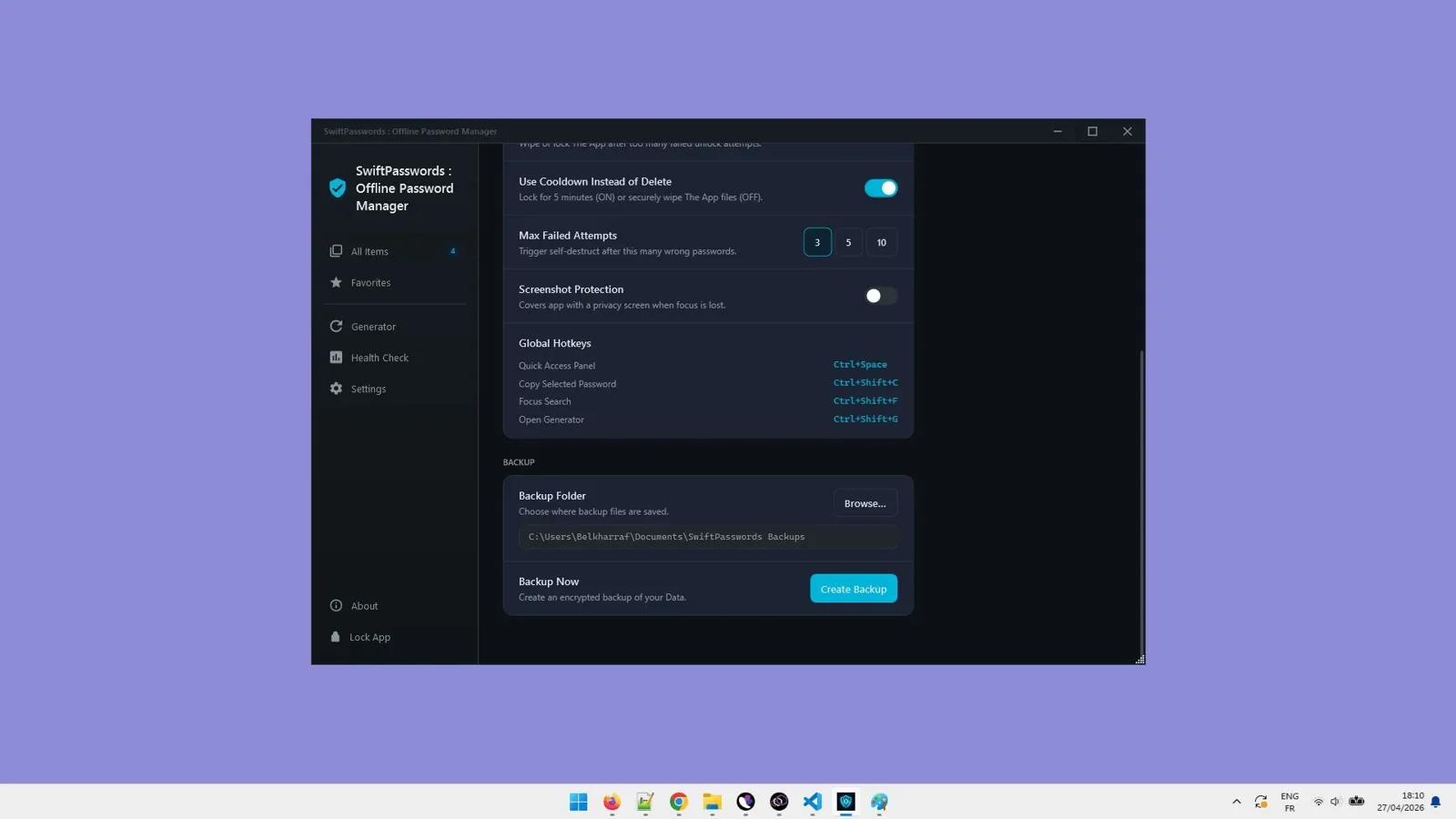
Final Verdict
Who should use SwiftPasswords?
SwiftPasswords is the best offline password manager for Windows users who want genuine local security without a subscription. The combination of AES-256 encryption, self-destruct mode, clipboard obfuscation, screenshot shielding, and a one-time $27 price makes it the highest-value option in this category. If you're on Windows and you've been meaning to get off cloud-based password managers, this is the cleanest path to doing it.
Overall Rating: 4.8 / 5
Frequently asked questions
Is an offline password manager safer than a cloud one?
For most threat models, yes. An offline password manager stores your vault only on your local machine, meaning there's no remote server to breach. The main tradeoff is that you don't get automatic cross-device sync, but for users who primarily work from one Windows PC, that's rarely an issue.
What happens if I forget my SwiftPasswords master password?
Since SwiftPasswords is offline and doesn't have a server-side account, there's no "forgot password" email reset option. Your master password is the only key to your vault. This is a feature, not a bug — it means no third party can reset or access your credentials — but it does mean you need to store your master password somewhere secure, like a printed backup in a safe location.
Can SwiftPasswords import from LastPass or 1Password?
Yes. SwiftPasswords supports CSV and JSON import, which are the standard export formats for most major password managers including LastPass, 1Password, Bitwarden, and Dashlane. You can migrate your existing vault in minutes.
Does SwiftPasswords work on Mac or mobile?
Not currently. SwiftPasswords is a Windows 10/11 desktop application. If you need cross-platform or mobile support, Enpass is the best offline-first alternative with apps for iOS and Android.
What is the self-destruct mode in SwiftPasswords?
Self-destruct mode automatically wipes your SwiftPasswords vault after a specified number of consecutive failed login attempts. This protects your credentials from brute-force attacks — if someone gets hold of your device and tries to guess your master password, they'll trigger a full vault wipe before they get in.
Is SwiftPasswords a subscription or a one-time purchase?
It's a one-time payment lifetime deal, currently priced at $27. There are no recurring fees, no account required, and no usage limits. You own the software outright.
Your Passwords Don't Belong in the Cloud
SwiftPasswords keeps them locked on your machine with AES-256 encryption and self-destruct protection — for a one-time $27 payment. Only 12 licenses left.
Get SwiftPasswords Now →One-time payment. Lifetime access. 100% offline. Windows 10/11.
Comments (0)
Leave a Comment