
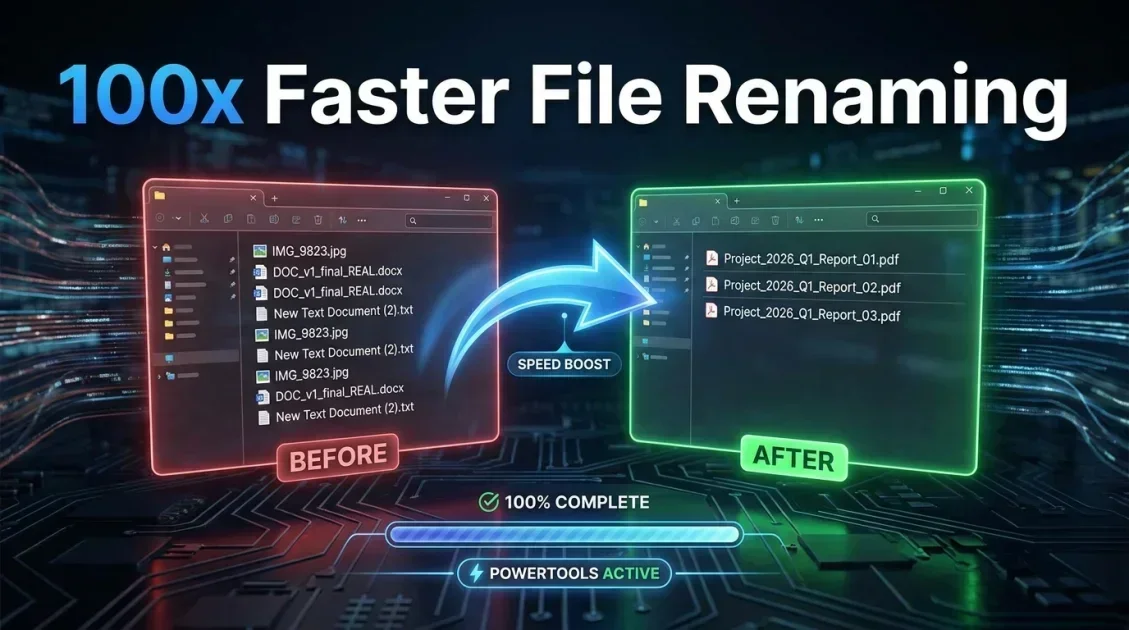
To batch rename files in Windows 11 and 10, select all target files in File Explorer and press F2 for basic sequential numbering, use PowerShell commands for pattern replacements, or run dedicated desktop software like Smart File Renamer to apply multi-step naming rules with real-time previews and undo safety. Managing large collections of documents, digital assets, or media files on PC requires systematic file naming to maintain productivity and prevent accidental data loss.
In this article
- Understanding File Renaming in Windows 11 and 10
- Method 1: Batch Renaming via Windows File Explorer (F2 Shortcut)
- Method 2: Advanced Batch Renaming Using Windows PowerShell
- Method 3: Legacy Command Prompt Renaming Commands
- Method 4: Professional Rule-Based Renaming with Smart File Renamer
- Deep Dive: Regular Expressions and Metadata Tagging on PC
- Real-World Use Cases: Photographers, Developers, and Archives
- Troubleshooting Common Windows File Renaming Errors
- Comparing Windows Batch Renaming Methods
- Best Practices for Standardizing Windows File Names
- Final Verdict
- Frequently Asked Questions
Understanding File Renaming in Windows 11 and 10
Modern operating systems handle millions of file operations daily, yet organizing messy directories remains a major challenge for PC users. When downloading camera imports, exporting project assets, or archiving quarterly financial reports, default names like IMG_9042.JPG or Document1_final_v2.pdf quickly lead to digital chaos.
Implementing a clear batch renaming workflow brings several core advantages:
- Enhanced Searchability: Consistent prefixes, dates, and keywords allow Windows Search and indexing tools to locate documents instantly.
- Cross-Platform Compatibility: Removing spaces, special characters, and non-standard symbols prevents broken links when sharing files across web servers, Linux systems, or cloud storage.
- Automated Organization: Sorting files chronologically or by project phase becomes effortless when dates follow the standardized ISO format (YYYY-MM-DD).
- Time Savings: Renaming hundreds of files in a single automated operation eliminates hours of repetitive typing.

Batch-renames files on Windows with flexible, rule-based workflows, live preview, and safe undo.
Method 1: Batch Renaming via Windows File Explorer (F2 Shortcut)
Windows File Explorer offers a built-in shortcut designed for fast sequential renaming without installing third-party tools. This method is suited for simple tasks where every file shares the same root name and requires basic numbering.
How to Use the F2 Shortcut in Windows 11 / 10
- Open Windows File Explorer and navigate to the folder containing your target files.
- Select all files you wish to rename by pressing
Ctrl + Aor holdingCtrlwhile clicking individual files. - Press
F2on your keyboard (or click the Rename button on the Windows 11 command bar). - Type your new base filename (for example,
Quarterly_Report_2026). - Press
Enter. Windows will rename all selected items sequentially asQuarterly_Report_2026 (1),Quarterly_Report_2026 (2), and so on.
Limitations of File Explorer Renaming
While convenient, the File Explorer method has significant drawbacks:
- It forces parenthetical numbering
(1), which creates awkward spaces and parentheses in web URLs. - It cannot perform search-and-replace text modifications across existing file names.
- It cannot alter or convert file extensions in bulk.
- It provides no preview mechanism, meaning errors affect your files immediately.
Method 2: Advanced Batch Renaming Using Windows PowerShell
System administrators and technical users often rely on Windows PowerShell for complex file manipulations. PowerShell utilizes cmdlets like Get-ChildItem and Rename-Item to manipulate string patterns.
Replacing Text in File Names via PowerShell
To search for a specific word in all files within a folder and replace it with new text, open PowerShell in your target folder and run:
Get-ChildItem *2025* | Rename-Item -NewName { $_.Name -replace '2025','2026' }
This command finds every file containing "2025" and replaces that text string with "2026".
Converting File Extensions in Bulk
To change all .jpeg extensions in a folder to .jpg, execute the following script:
Get-ChildItem *.jpeg | Rename-Item -NewName { [System.IO.Path]::ChangeExtension($_.Name, ".jpg") }
Drawbacks of PowerShell Scripting
PowerShell is versatile, but syntax errors can result in corrupt file paths or accidental data overwrites. Lacking a graphical preview, executing scripts without testing can cause irreversible renaming mistakes.
Method 3: Legacy Command Prompt Renaming Commands
The Windows Command Prompt (CMD) provides basic wildcard renaming capabilities using the ren command.
Basic Wildcard Example
To convert all .txt files to .doc files inside a directory using Command Prompt:
ren *.txt *.doc
CMD commands are lightweight but extremely restrictive. Wildcard operations often truncate names unexpectedly and lack basic features like case modification or position-based character insertion.
Method 4: Professional Rule-Based Renaming with Smart File Renamer
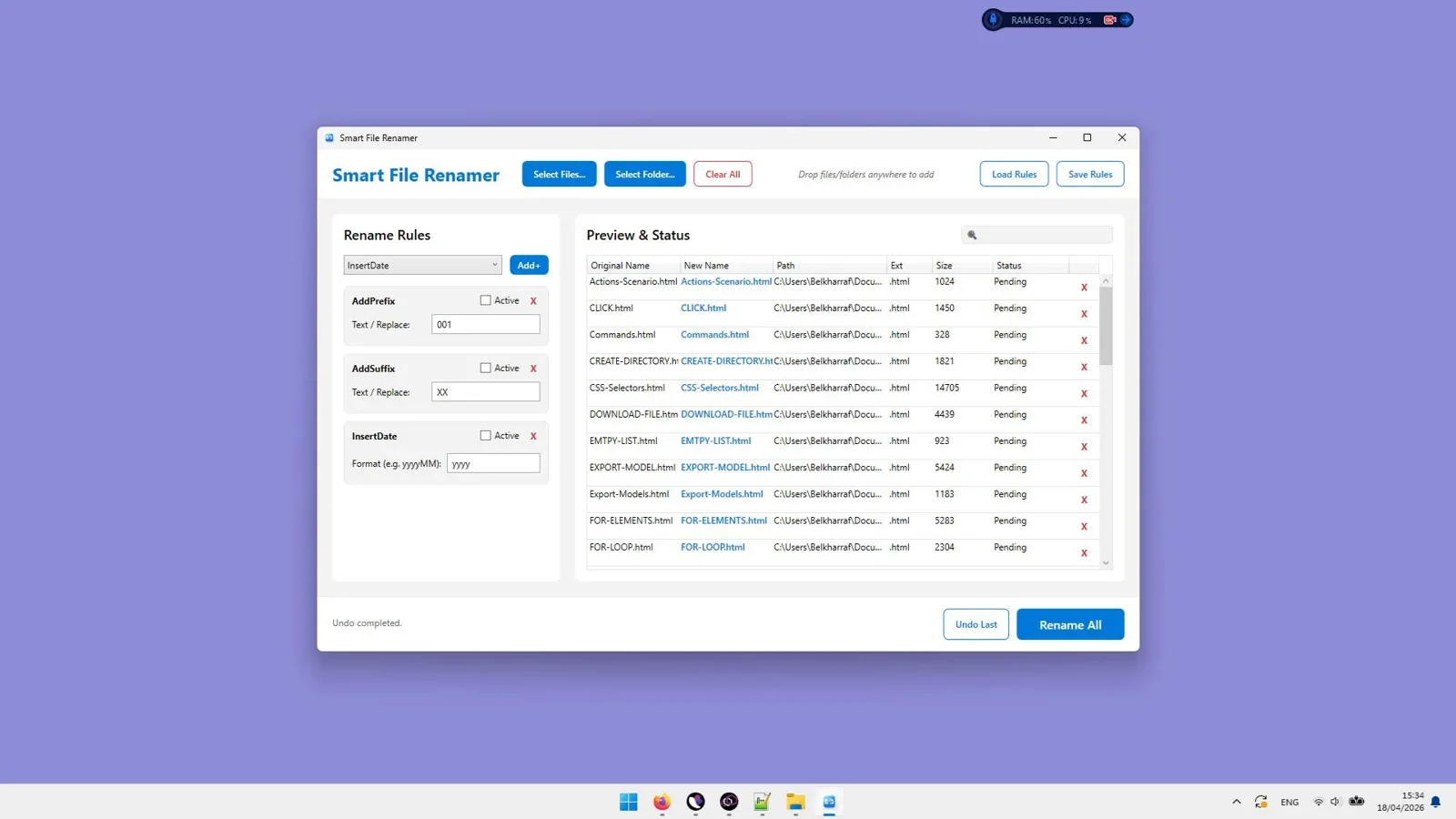
When native Windows utilities fail to meet your workflow requirements, Smart File Renamer provides the ultimate balance of power, visual control, and safety on Windows PC.
Why Smart File Renamer Is the Best Choice for PC
- Multi-Rule Stacking: Apply multiple transformations simultaneously. You can strip numbers, insert a project tag, convert text to lowercase, and append a timestamp in a single pass.
- Real-Time Live Preview: See the exact result before modifying a single file on your hard drive.
- Full Undo Safety: Maintain an active transaction log. If a rule produces unexpected results, click Undo to revert every file to its original name instantly.
- 100% Offline Processing: Unlike cloud converters, Smart File Renamer executes entirely on your PC. Your confidential company files and private photos remain secure.
Deep Dive: Regular Expressions and Metadata Tagging on PC
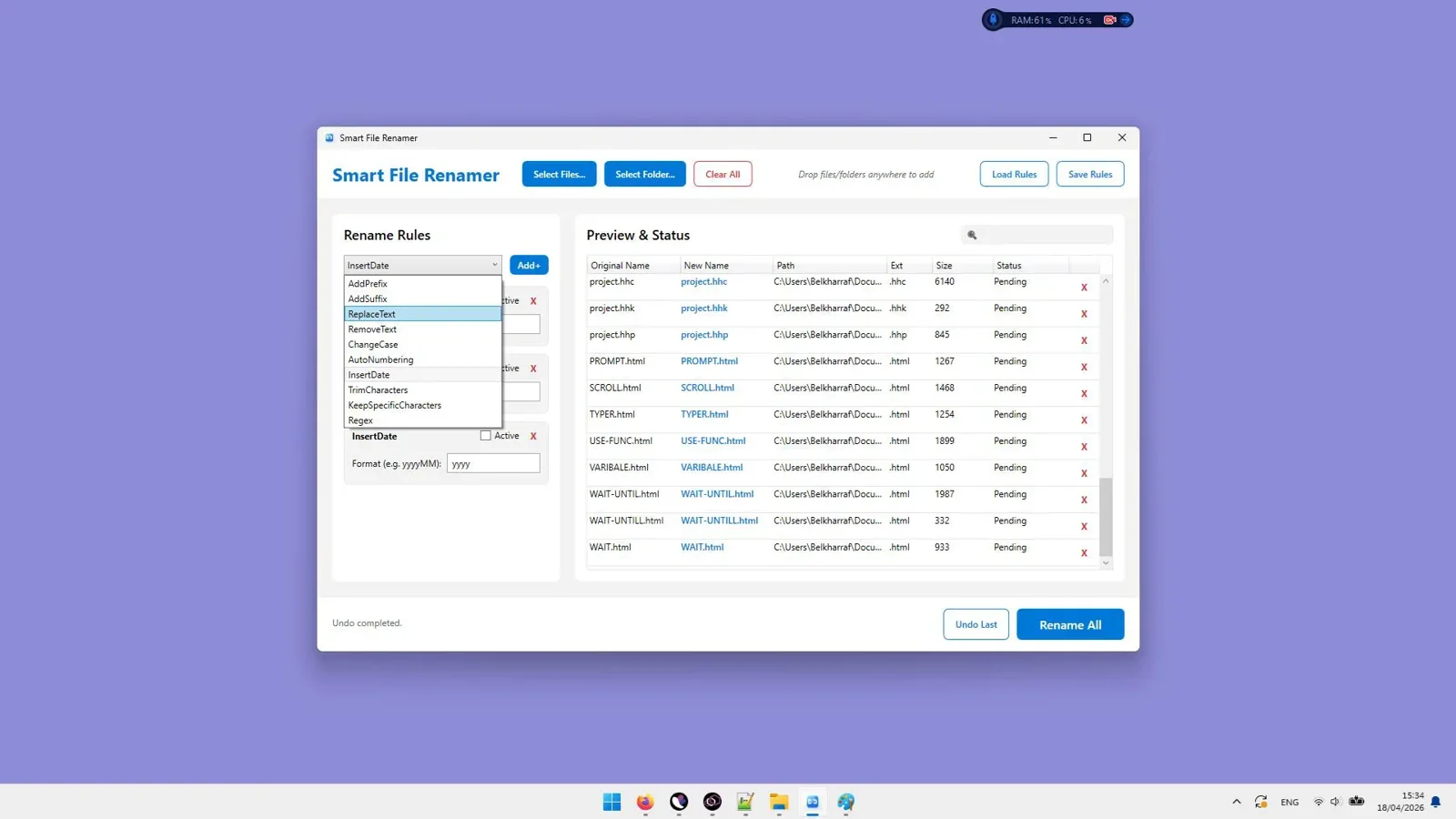
For advanced file management, static search-and-replace rules are not always sufficient. Complex directory restructuring requires dynamic logic, such as extracting metadata or matching pattern variations using regular expressions (Regex).
Mastering Regular Expressions for Filenames
Regular expressions allow you to identify complex patterns within filenames regardless of the exact text strings. For example, if you have a folder of scanned invoices named Invoice_01_2024.pdf, Invoice_02_2025.pdf, and Invoice_03_2026.pdf, a regex rule can re-order the date components to the front of the filename string.
In Smart File Renamer, you can input regex patterns visually without writing intricate code scripts. Pattern matching lets you isolate digits, strip punctuation, remove tracking codes, or swap block segments with precision.
Utilizing Image EXIF and Media Metadata
Digital files carry valuable metadata stored inside their file headers. Professional batch renaming software reads these metadata fields and integrates them directly into file names:
- Camera EXIF Data: Extract the exact date and time a photo was captured (e.g.,
20260812_143000.JPG), camera model, or ISO settings. - Audio ID3 Tags: Extract track numbers, artist names, album titles, and release years for MP3, FLAC, and WAV music files.
- Document Properties: Pull creation dates, author names, or page counts into PDF and Word filenames.
Real-World Use Cases: Photographers, Developers, and Archives
1. Professional Photography Cataloging
A wedding photographer shoots 3,000 photos across two camera bodies. The resulting directory contains overlapping camera file names like _DSC001.RAW and IMG_0001.CR3. Using Smart File Renamer, the photographer imports the entire directory, applies an EXIF date rule combined with a client name prefix (Smith_Wedding_2026_0001.RAW), previews the chronological order, and executes the batch in under ten seconds.
2. Software Development Asset Cleanup
A front-end developer receives hundreds of UI icons from a design team with inconsistent names like Icon Button-Blue (1).PNG, ICON_SEARCH_v2.png, and icon-home.JPEG. Using rule stacking in Smart File Renamer, the developer applies three rules in sequence: 1) Convert all characters to lowercase, 2) Replace spaces and special characters with hyphens, 3) Change all extensions to .png. The result is a clean web-ready asset library.
3. Legal and Financial Document Archiving
An accounting firm archives thousands of scanned PDF tax records. To meet compliance requirements, every document must follow the naming standard CLIENTID_TAX_YEAR_STATUS.pdf. Smart File Renamer loads subfolders recursively, applies multi-string replacements, and creates a clean audit trail with instant undo capability.
Troubleshooting Common Windows File Renaming Errors
When batch renaming files on Windows 11 or 10, users frequently encounter standard operating system errors. Understanding how to resolve these issues prevents workflow interruptions:
1. The File Is Open in Another Program Error
Windows locks files that are currently in use by background processes, media players, or preview handlers in File Explorer. Before running a batch rename, close active editing software (such as Photoshop, Word, or Premiere) or disable the File Explorer Preview Pane (press Alt + P).
2. Max Path Length Exceeded (260 Characters)
Legacy Windows API restrictions limit total file paths to 260 characters. Adding long prefixes or nested folder structures can cause renaming tools to fail. To fix this, shorten folder names higher up the directory tree or enable Long Paths in Windows 11 Group Policy settings.
3. File System Character Restrictions
Windows filenames cannot contain any of the following characters: \ / : * ? " < > |. Dedicated utilities like Smart File Renamer automatically highlight invalid characters during live preview and replace them with underscores or hyphens before writing changes to disk.

Effortlessly rename thousands of files on Windows with rule stacking, live previews, and safe undo protection.
Comparing Windows Batch Renaming Methods
| Feature | File Explorer (F2) | Windows PowerShell | Command Prompt (CMD) | Smart File Renamer |
|---|---|---|---|---|
| Learning Curve | None | High (Code) | Moderate | Very Low (GUI) |
| Live Preview | No | No | No | Yes (Real-time) |
| Undo Protection | Basic (Ctrl+Z) | None | None | Full One-Click Undo |
| Search & Replace | No | Yes | No | Yes (Visual Rules) |
| Bulk Extension Edits | No | Yes | Limited | Yes (Dedicated Module) |
Best Practices for Standardizing Windows File Names
To keep your Windows directory structures clean, adopt these file naming conventions:
- Use ISO 8601 Date Formats: Always format dates as
YYYY-MM-DD(e.g.,2026-08-12) so files automatically sort chronologically. - Avoid Spaces: Replace spaces with underscores
_or hyphens-to make files easier to open in web environments and scripts. - Use Leading Zeros for Sequential Numbers: Format numbers as
001, 002, 003rather than1, 2, 3so Windows sorts 100+ files correctly. - Keep Names Concise: Limit filenames to under 100 characters to prevent Windows max path length issues (260 character limit).
Final Verdict
Final Verdict
Who should use this tool?
Windows 11 and 10 users who need a fast, intuitive way to batch rename files, swap text, fix extensions, and organize directories without writing code or risking accidental data corruption.
Overall Rating: 4.9 / 5
Frequently Asked Questions
How do I batch rename files in Windows 11 without software?
Select all items in File Explorer, press F2, type a new title, and hit Enter. Windows will assign the base name to all files with sequential parenthetical numbers.
Is PowerShell better than File Explorer for batch renaming?
Yes. PowerShell offers regex replacement and extension modification, but it requires scripting knowledge and lacks a visual live preview.
Can Smart File Renamer undo an incorrect renaming job?
Yes. Smart File Renamer maintains a complete transaction log, allowing you to revert all changed filenames back to their original state with a single click of the Undo button.
Streamline Your Windows File Renaming Workflows
Stop wasting hours on manual file edits. Take control of your Windows directories with live previews, rule stacking, and complete undo safety.
Get Smart File Renamer →Windows Desktop Software - Lifetime License



Comments (0)
Leave a Comment